It is quite convenient for Windows users to use WhatsApp web to access WhatsApp. This gets you going with most of the WhatsApp features you get with the app. However, sometimes, you may face issues with it. Users have reported that their WhatsApp Web was sometimes not working on Windows 11 .
WhatsApp Web is fully based on a browser. If you are facing WhatsApp Web issues, it may be because of your browser or bugs. So, what should we do if WhatsApp Web is not working on Windows 11? Here are some troubleshooting steps that will help you fix this issue.
Best Ways to Fix WhatsApp Web Not Working on Windows 11
WhatsApp Web Not Working on Windows 11? Given below are some troubleshooting steps to help fix issues with WhatsApp Web.
1. Check WhatsApp Server
If you are facing issues with WhatsApp Web, you must check whether WhatsApp Servers are up or not. If the servers are down, you are likely to face such issues. To check the server status of WhatsApp, you can head to DownDetector’s website .
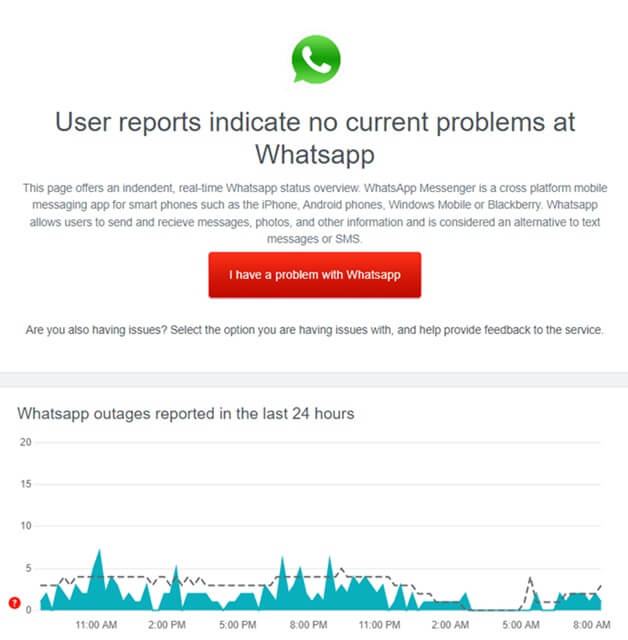
If there are some issues with the WhatsApp server, you will have to wait for the servers to be up again. If there are no WhatsApp server issues, move to the next step in this article.
2. Check Browser Compatibility
WhatsApp Web may or may not work on the browser you are using. WhatsApp Web works on most browsers , but not all browsers. If you face issues with WhatsApp Web, we recommend you use browsers like Safari, Chrome, Edge, Opera, Firefox, Brave, etc.
3. Update WhatsApp on your Phone
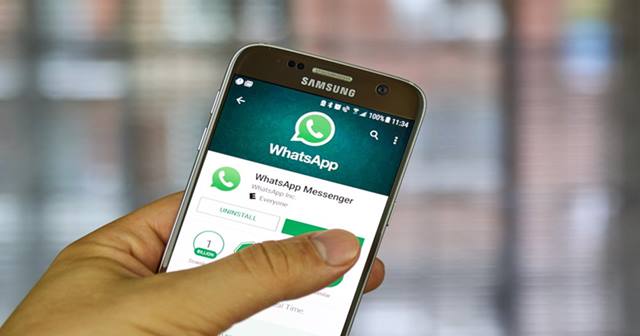
If you are facing this issue with WhatsApp, you must ensure that the WhatsApp on your phone is updated. If you are running an outdated version of the app on your phone, then you are likely to face this issue.
You must update WhatsApp on your phone to fix the issue. You can use the Play Store ( on Android ) or the App Store ( on iOS ) to update the WhatsApp app.
4. Update The Browser
Another reason behind facing this issue is an outdated browser . You must update your browser to fix the issue.
To update Google Chrome, follow the steps given below-
- Click on the Three Dots at the top right corner of the browser and select Settings .
- From the left sidebar, click on the About Chrome section.
- On the right side, you will be notified whether an update is available or not.
- If the update is available, simply download and install it.
To update Mozilla Firefox, follow the steps given below-
- Click on the Menu icon at the top right corner and then on Options.
- Here, under the Firefox Updates section, click on Check for updates button.
- Download and install any available updates, and restart your browser.
5. Reset Network Settings
Another method users can apply is to reset the network settings to fix the WhatsApp web not working on Windows 11. For that, the user needs to follow the steps given below-
- Go to the Start menu , search for Settings and open it.
- Under the Network & Internet section, click on Advanced Network Settings .
- Next, click on the Network reset option.
- Then, click on the Reset now button and then click on Yes to confirm resetting the Network settings.
- You will now have to restart your PC and the issue will be fixed.
6. Clear Browser Cache
Caches are transient data or files that improve a browser’s working speed. If accumulated for too long, the cached data may get corrupted, so WhatsApp web will stop working in Windows 11. You must clear the cache and cookies if facing issues with the WhatsApp Web.
To clear the cache on Chrome, follow the steps given below-
- Press Ctrl + Shift + Delete on your Chrome window , and you will be headed to the Clear Browsing Data page.
- Here, select Cached images and files and Cookies and other site data .
- Click on the drop-down menu next to the Clear the following items from and then select the beginning of time.
- Click on Clear Now to clear the browser cache
To do so in Firefox, follow the given steps-
- Click on the menu icon at the top right corner, and then click on Options.
- On the left sidebar, click on Privacy & Security , and then under the Cookies and Site Data option, click on Clear Data.
- Select the Cookies and Site Data and Cached Web Content option, then click on Clear.
- Restart your Firefox and then check if you are still facing the issue.
7. Disable Antivirus
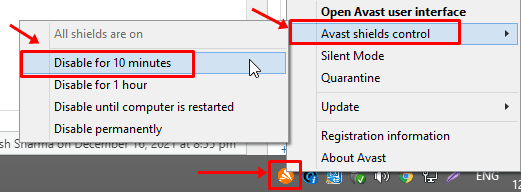
Many users may face issues due to the Antivirus on their system. In that case, users should temporarily try to disable the antivirus on their system.
The issue will probably be due to the third-party antivirus software the user is using. Try disabling it and then check if you are still facing the issue.
If the issue is no longer encountered, it was probably caused by the antivirus on your system. It would be best to uninstall the antivirus to fix the issue permanently.
Conclusion
If you have been facing WhatsApp Web not working on Windows 11 issue, and it is not working properly, then you should try following the steps in the article above. The above steps will help troubleshoot issues with WhatsApp Web and you can use it without any problem.
