WhatsApp has just added a Shopping button on its platform , where users can easily check a business’s catalog. Previously, users are supposed to check the catalog by clicking on the profile.
This was announced last month and appeared only if the business has added any products to its catalog. This addition is aimed at making WhatsApp a one-stop-shop for purchasing products online.
Checking Catalog With a Single Click
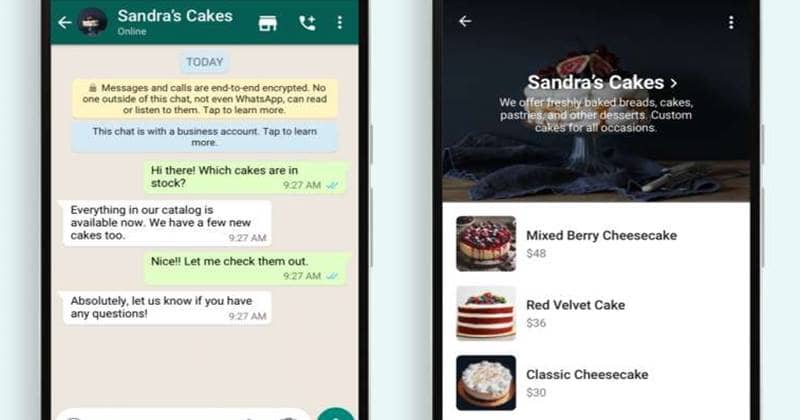
WhatsApp Added a Shopping Button
Facebook wants WhatsApp to become a one-stop-shop for purchasing goods online. While the parent company has tried and failed, it can easily attain success with its subsidiary messenger.
After all, WhatsApp has just announced its native payment system in India; it’s the largest market by user base with over 400 million users.
It added a dedicated button to browse the product catalog of businesses, hoping to increase their sales. According to WhatsApp, about 170 million users interact with a business account daily, and about 40 million people check the catalog every month. Thus, adding a dedicated button to bring that product a step closer is justified.
WhatsApp said this feature will be available throughout the world and will be set in the voice call button’s place. This moves both the voice call and video call to a call button, tapping, which shows you the options to choose one. Tapping will directly open the product catalog (if set), which would otherwise be looked at within the profile.
If you’re a business wanted more reach through this feature, make sure you add your products to the catalog. This can be done by going to Settings > Business Tools > Catalog and tap on the “+” icon at the bottom.
You’ll have an option to add photos of the products from your gallery or camera. Also, make sure you mention the product in its description and add a price (optional) to it.
If you’re a user, open any business account chat and check at the top beside the contact’s name. You’ll be seeing a storefront icon if that business has added any products to its catalog.
While running on the latest version of the app is necessary, it may not need users to update the app now since it shows up just like that. Thus, it could be a server-side update.
- WhatsApp May Soon Support Multiple Devices for a Single Account
- How to Enable Fingerprint Lock on WhatsApp in Android
- Whatsapp To Bring Face Unlock Support For Android Users
- How To Read Deleted WhatsApp Messages
We are here with the most awaited feature which you all are waiting for. As for security concerns, WhatsApp added an updated new security feature to their app. In this article, we will see how you can enable fingerprint lock in WhatsApp? . This feature will help you with safety measures and prevent you from keeping your message safe. This feature is currently working in WhatsApp beta version, but soon it will be working in WhatsApp stable versions.
The users who want to enable this feature have to do it manually from the app. Below listed steps to enable fingerprint lock in WhatsApp will help you to enable this feature quickly. Unfortunately, the feature is only for users with an android marshmallow or above in their android device.
Credits – https://www.androidpolice.com
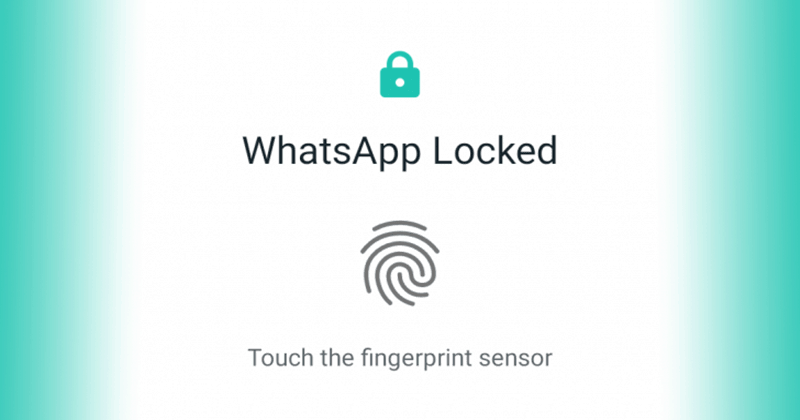
After enabling this feature, whenever you open WhatsApp , it asks for a fingerprint to unlock it. However, you can attend the WhatsApp call without any lock. You can also reply to the conversation from notification without a fingerprint lock.
List of Steps to Enable Fingerprint Lock in Whatsapp For Android
These steps are pretty simple and don’t need much time and effort. However, your device must have a fingerprint scanner to use this feature. We will suggest you disable WhatsApp notifications to ensure safety as anyone can see your unread message from the notification bar. Let’s look out the steps and ready to use this feature.
Step 1: If you are using an older version, then kindly update the version from here .
Note- If you do not update the app, you will not see this feature in this app. So it is necessary to update the app.
Step 2: Open WhatsApp, and you will see three dots on the upper right. Click on that and go to the setting option.
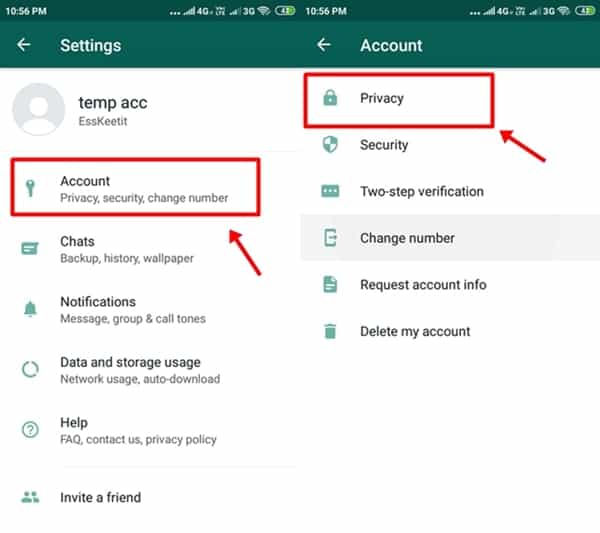
Step 3: In settings, you will see the different options, so tap on the account section. In the account section, you will see privacy .
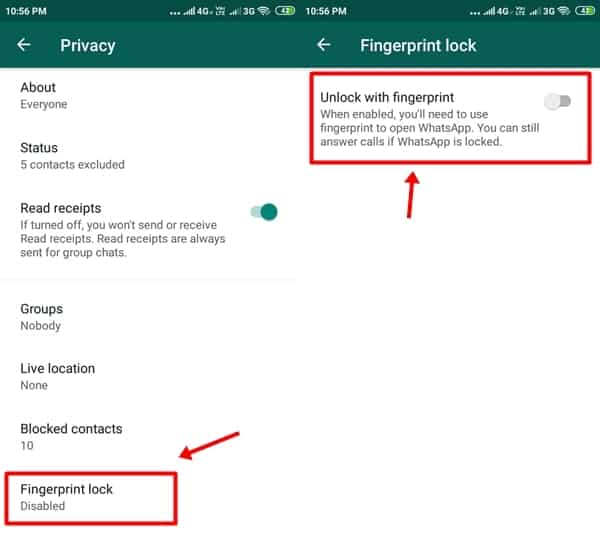
Step 4: Click on the privacy and then tap on the fingerprint lock option . After clicking on it, you will get the option to enable or disable this feature.
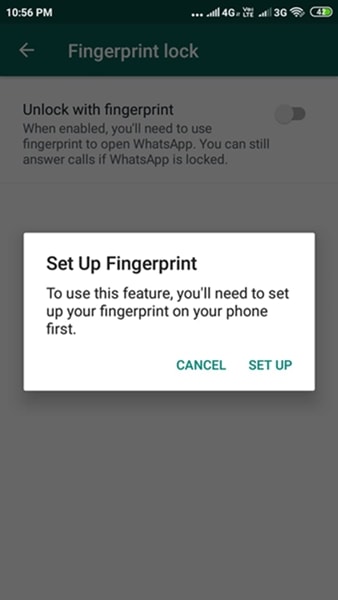
Step 5: Click on the bar to enable the feature , and the app will ask for the fingerprint. Complete fingerprint session, and you are good to go.
Note- Kindly properly follow the steps to use this feature properly. If you face any problem in enabling the feature, then try again or reinstall your WhatsApp messenger.
Conclusion
This method to enable fingerprint lock in WhatsApp is straightforward and working still. If you face any problem and have a query, you can comment down below. The disadvantage of this feature is it can be frustrating, too, as every time you open the app, you need a fingerprint.
The feature will take some weeks for the stable WhatsApp version to be introduced. The feature will only support fingerprint scan; face recognition is not supported now.
- Whatsapp To Bring Face Unlock Support For Android Users
- How to Stop People From Adding You To WhatsApp Groups?
- How to Enable Dark Mode on WhatsApp Web?
