It is a term to indicate that our past orders or historical records (such as bills, ratings, etc.) are preserved. This is very necessary because if we want to hide our orders from others, it will greatly help us.
Also Read- Is AliExpress Legit & Safe?
What are Archived Orders?
However, people generally aren’t sure about this option. They think that enabling it deletes the order details. But that’s not the truth; it just moves your order details to the back burner.
Firstly, open Amazon on your web browser and log in using your account credentials.
After that, navigate to the Returns & Orders and scroll down to locate the order you wish to archive.
Then, click on Order Details > Archive Order.
That’s it. Now, if it asks you to confirm it, simply hit the Archive Order button again.
Initially, open Amazon on your web browser and log in using your account credentials.
After that, navigate the Accounts & Lists drop-down button and tap on Your Account.
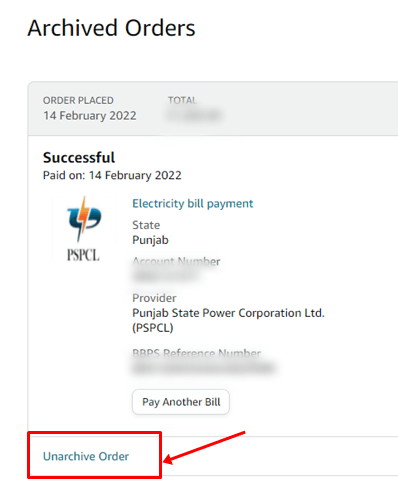
Then, click on Your Orders, then select Archived Orders from the drop-down menu.
- First, launch your web browser and hover over the Amazon website. Then, log in using your credentials.
- After that, on the Amazon Home page, navigate to the Browsing History link at the window’s top-right corner. Alternatively, press the Ctrl + F button, then paste Browsing History. This will automatically show you the location of Browsing History .
- Then, hover over to the Manage History option and click on the Remove all items from the view button. However, if you want to turn off your browsing history forever, toggle the button shown in the picture to the Off position.
