As we all know, some files and folders are hidden in Android phones and take up our phone’s storage. What if we find those files and remove the junk and unnecessary files? Well, ‘let’s discuss. Having unnecessary hidden files on your phone will result in several problems. These problems are slowing down working on the phone, Process stopping, and hanging. Then why not delete these files? There are various ways to view hidden files on Android.
You first have to unhide the apps because you can’t delete any hidden files. With the use of different apps , you can view the hidden files. These apps will help you simplify your work by unhiding files. You can quickly check the hidden files in Android by performing some simple steps. So, let’s review the app now and proceed with your task to unhide and remove them.
Also Read- Best Hidden Spy Apps For Android
Best Ways to Show Hidden Files and Folders on Android
1.) Using ES File Explorer
This app is not only the best app for unhiding hidden files but also provides various features. It is the best app for viewing hidden files on Android in 2016. The interface of this app is quite simple, so you can quickly proceed with unhiding the files.
You will also get an interface similar to a file manager. You can now manage various files here and even extract and compress zip files. So now, let’s check out how to unhide files using this.
Step 1: First, you have to download and install the ES File Explorer.
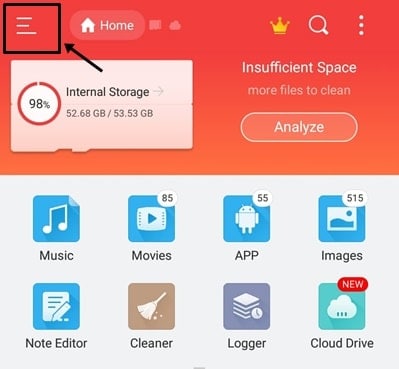
ES File Explorer.
Step 2 : After installing, click the top left button to see multiple options.
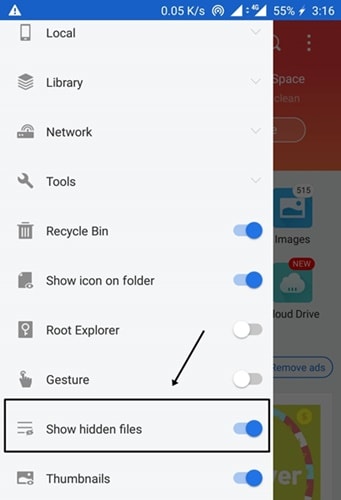
Step 3: Now scroll down, and you will get the option “Show Hidden Files.” Just enable the option, and you are done.
Tip: You can also view system hidden files by tapping on the root, which is below the “Show hidden files” option.
2.) Using the Default File Manager
Most of you know the name of File Explorer, as it comes pre-built into your device. It can come with two names: either a file manager or a file explorer. Now, with simple steps, you can unhide the files. The best thing is that you don’t need to install this app as it is preinstalled. So now, let’s see the steps to unhide the files.
Step 1: Search for File Manager or File Explorer on your phone.
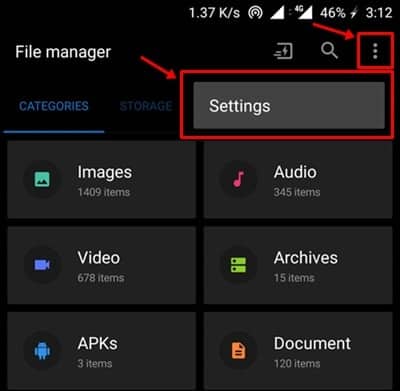
Step 2: Now, open the app, and you will see the three dots .

Step 3: Click on those three dots, and the settings will open and now enable the option- “Show Hidden Files.”
3.) Using Astro File Manager
It is the best file manager app and also helps clean memory. You can even create a backup to an SD card through this app. It is a multipurpose app for storing and managing your files. The best part is that this app has a cloud manager, which helps you create a backup or save your files to the cloud. Now, let’s check how to unhide files using this.
Step 1: First, download and install the app Astro File Manager .
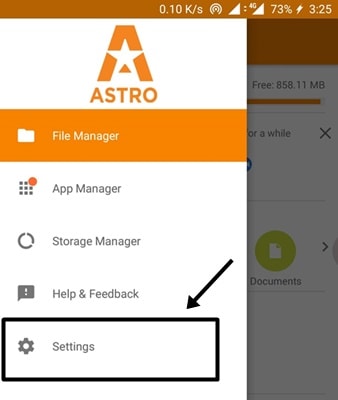
Step 2: Open the app; in the top left corner, you will see three dots. Click on that and then select settings.
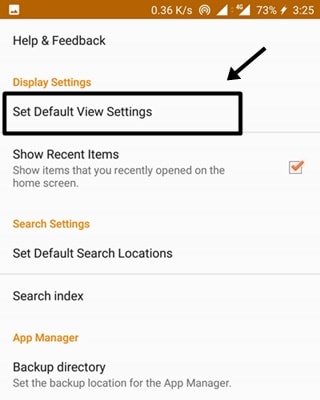
Step 3: Now, click “Set View Default Settings” under the display settings.
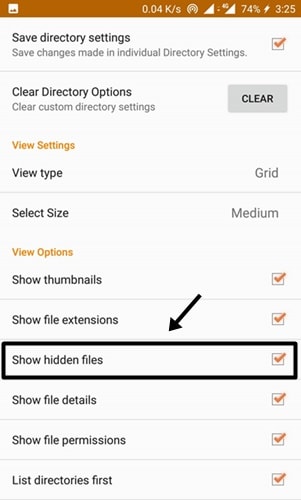
Display Hidden Files on Android
Step 4: When you click on it, you will see some of the options, and in between options, you will find “Show Hidden Files.” Just tick that option; now you are done.
Also Read- Best Download Managers for Android
