Are you getting frustrated because of adding to unknown WhatsApp groups? Don’t worry; we got the solution to restrict the WhatsApp group. We can understand your frustration of adding to the unnecessary groups and getting the bulk messages. However, we will try to solve it out for you.
Suppose you make a call to a person for work, and they save your number, and unfortunately, it is on WhatsApp. Now that person created the group for selling and buying and added you. You will be getting bulk messages in a group which you don’t want. Idle you get in the group which you never want to be.
Is There any Way to Stop People from Adding me to Their WhatsApp Groups?
Your number can be viral if you add to the unknown group, which is very harmful as anyone can misuse it. The below method to stop people from adding to the group will help you get out of this issue. Most people block the contact, which adds them to a group, which is a temporary solution to this problem.

Whatsapp is noticed this struggle and release their new update with the feature to control group security. In this new feature, you can select who can add you to groups. This feature is specially introduced to get relief from annoying users who add you to Whatsapp groups. Let’s check it out and fix this problem.
Steps To Stop People From Adding You To Whatsapp Group:
Below listed is the official way which is released by the WhatsApp to stop people from adding you to the WhatsApp group. Hence to use this feature, make sure you update your WhatsApp messenger app through play store. Whatsapp has enabled this feature to maintain the security of its users.
Step 1: Make sure your WhatsApp must be updated in order to use this feature. If you are using the old WhatsApp version, kindly update it through google play store.
Step 2: Open WhatsApp, and you will see three dots on the upper right corner. Click on that dots and go to settings .
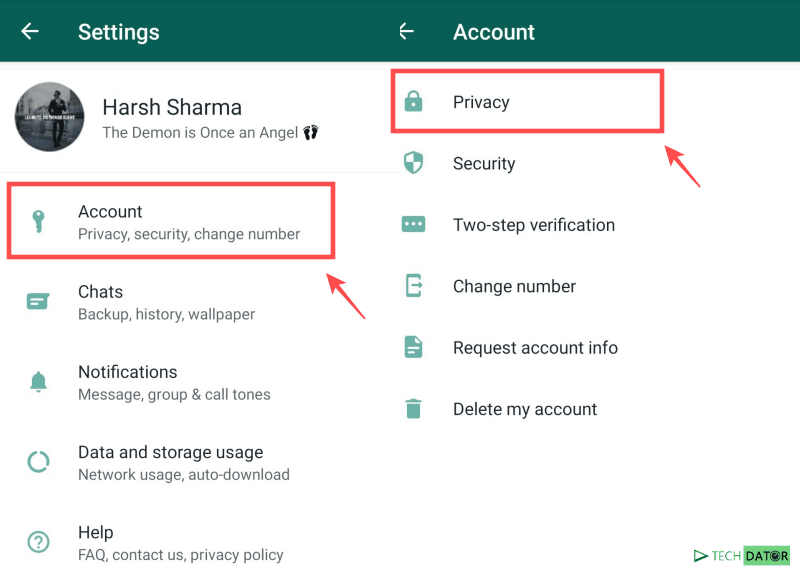
Step 3: After going to settings tap on the account and in the account, you will see the privacy option there.
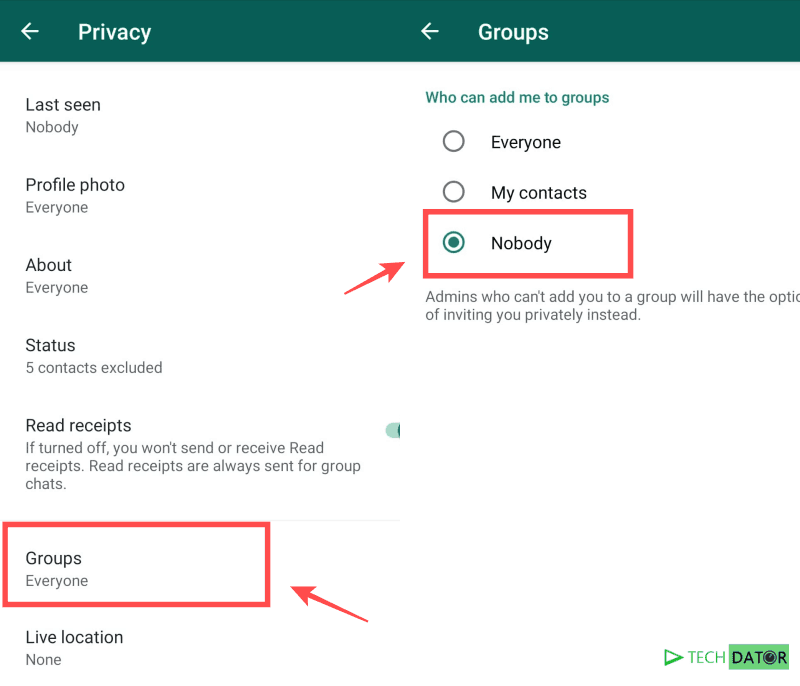
Step 4: Click on privacy , and you will see various options there. Find and tap on the groups.
Step 5: After tapping to groups, WhatsApp will ask you question who can add you to the group. You will get three options Everyone, My Contacts, Nobody. Just Select “Nobody” and Click Save. Let’s discuss these options to understand it better.
- Everyone- If you select everyone, then WhatsApp will allow every WhatsApp user to add you to any group.
- My Contacts- Only those people can add to the group whose contact is saved to your contact list.
- Nobody- If you select this option, then nobody will be able to add you to any group. However, anyone can invite you to join the group, and you can join according to you.
Select the option according to you and you are done. After selecting WhatsApp will automatically save your choice and will perform an action according to your settings.
Alternative Solution
As we have discussed above, there is also an alternative solution if you don’t want to shift to an upgraded version of WhatsApp. However, this solution is temporary, and many of you are already using it.
Step 1: Once you added to any group, open it, and check who is the Admin.
Step 2: After getting the admin number click on open chats, and you will see block option there.
Step 3: Block that person and leave the group. After blocking that person can’t able to add you to any WhatsApp group.
Conclusion
We will suggest you use the official feature to restrict users from adding you to the WhatsApp group as it is official and straightforward. You can quickly modify the settings, and you are good to go. However, an alternative solution will help you temporarily.
Suppose ten people added you to different groups, so you have to exit all and block the group admins, which is the hard task. We are not forcing you to use any method; it’s your choice. We just gave our views to help you out. We hope this article will help you and clear all your questions and doubts.
- How to Enable Dark Mode on WhatsApp Web?
- How to Convert WhatsApp Voice Messages to Text in Android / iOS?
- How To Enable Fingerprint Lock on WhatsApp in Android?
- Best Ways To Save Battery Life On Android Smartphones
- Best Free Voice Changer Apps For Android and iOS
We are here with the most awaited feature which you all are waiting for. As for security concerns, WhatsApp added an updated new security feature to their app. In this article, we will see how you can enable fingerprint lock in WhatsApp? . This feature will help you with safety measures and prevent you from keeping your message safe. This feature is currently working in WhatsApp beta version, but soon it will be working in WhatsApp stable versions.
The users who want to enable this feature have to do it manually from the app. Below listed steps to enable fingerprint lock in WhatsApp will help you to enable this feature quickly. Unfortunately, the feature is only for users with an android marshmallow or above in their android device.
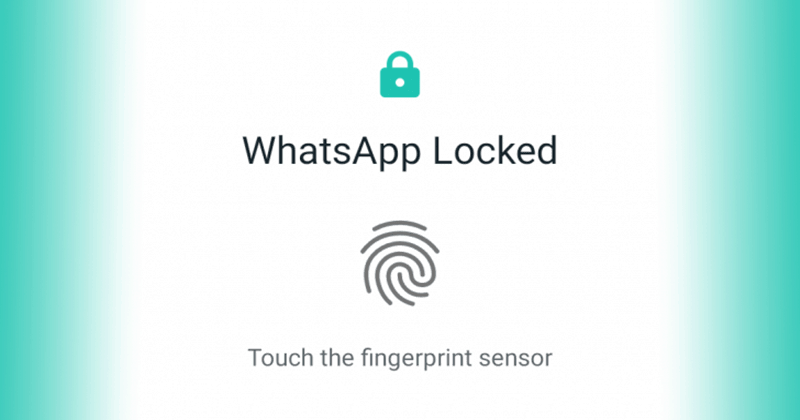
Credits – https://www.androidpolice.com
After enabling this feature, whenever you open WhatsApp , it asks for a fingerprint to unlock it. However, you can attend the WhatsApp call without any lock. You can also reply to the conversation from notification without a fingerprint lock.
List of Steps to Enable Fingerprint Lock in Whatsapp For Android
These steps are pretty simple and don’t need much time and effort. However, your device must have a fingerprint scanner to use this feature. We will suggest you disable WhatsApp notifications to ensure safety as anyone can see your unread message from the notification bar. Let’s look out the steps and ready to use this feature.
Step 1: If you are using an older version, then kindly update the version from here .
Note- If you do not update the app, you will not see this feature in this app. So it is necessary to update the app.
Step 2: Open WhatsApp, and you will see three dots on the upper right. Click on that and go to the setting option.
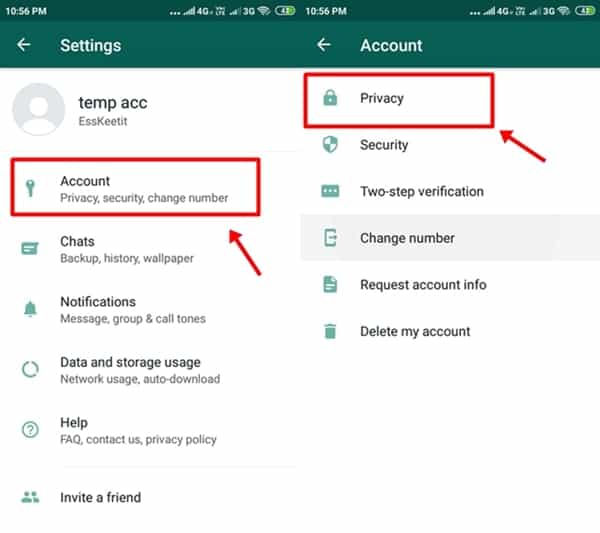
Step 3: In settings, you will see the different options, so tap on the account section. In the account section, you will see privacy .
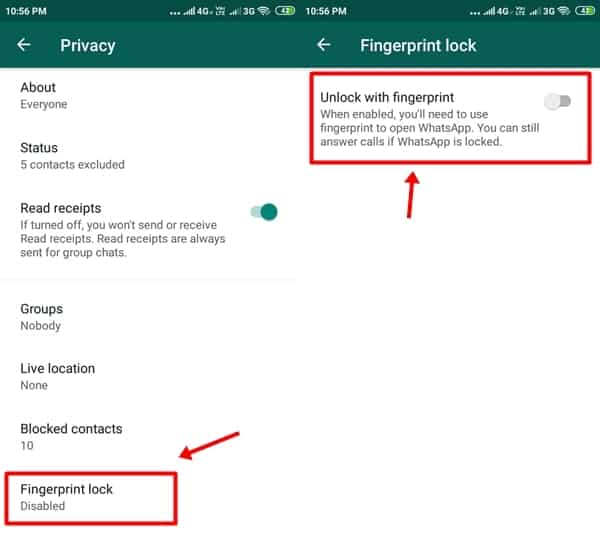
Step 4: Click on the privacy and then tap on the fingerprint lock option . After clicking on it, you will get the option to enable or disable this feature.
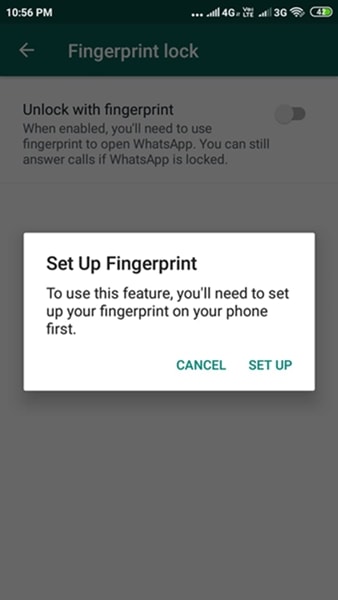
Step 5: Click on the bar to enable the feature , and the app will ask for the fingerprint. Complete fingerprint session, and you are good to go.
Note- Kindly properly follow the steps to use this feature properly. If you face any problem in enabling the feature, then try again or reinstall your WhatsApp messenger.
Conclusion
This method to enable fingerprint lock in WhatsApp is straightforward and working still. If you face any problem and have a query, you can comment down below. The disadvantage of this feature is it can be frustrating, too, as every time you open the app, you need a fingerprint.
The feature will take some weeks for the stable WhatsApp version to be introduced. The feature will only support fingerprint scan; face recognition is not supported now.
- Whatsapp To Bring Face Unlock Support For Android Users
- How to Stop People From Adding You To WhatsApp Groups?
- How to Enable Dark Mode on WhatsApp Web?
