The most popular and reliable messaging services, email services, were never designed to share large files. Although these services undoubtedly let you share messages and information more effortlessly, they have certain restrictions on the size limit when sending files, which vary with the email services.
However, there are alternative methods for sharing large files via email attachments. Today, we will examine some methods for faster email file sharing . Some are easy to use, while others require a workaround.
List of Best Ways to Send Large Files via Email Attachments
Looking to know how to send large files via email attachment? Below, we have listed some of the best and safest ways to share large files via email services. You can send files of a particular size using the cloud service. Beyond that, you need to upgrade your plan.
Also Read- How To Send Large Videos Online
1. Send via Gmail Google Drive Integration
Since Gmail offers a maximum file limit of up to 25MB , you can send it directly if your file is within this limit. However, if your file exceeds this limit, you might face problems sharing it as an email attachment.
In such cases, you can integrate Gmail and Google Drive. This is undoubtedly a much faster way of sending files as attachments.
Gmail and Google Drive integration might seem quite unfamiliar. However, since both these services have the same root, creating one is easy. All you need to do is attach Google Drive files to your Gmail.
- Log in to your Gmail and open your email composer.
- At the bottom, click the Google Drive icon to open your Google Drive window.
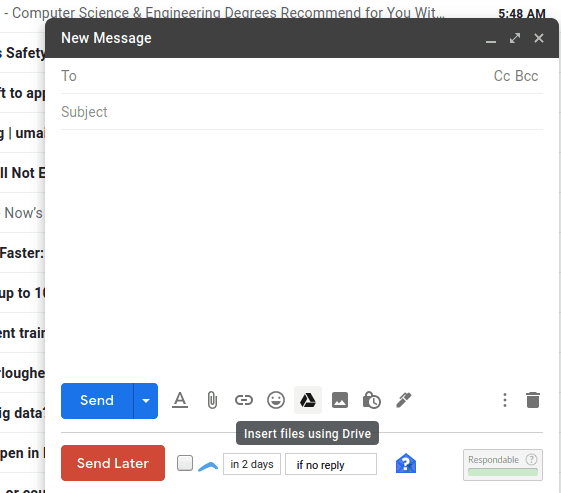
- Now you can either select a file or upload a new one.
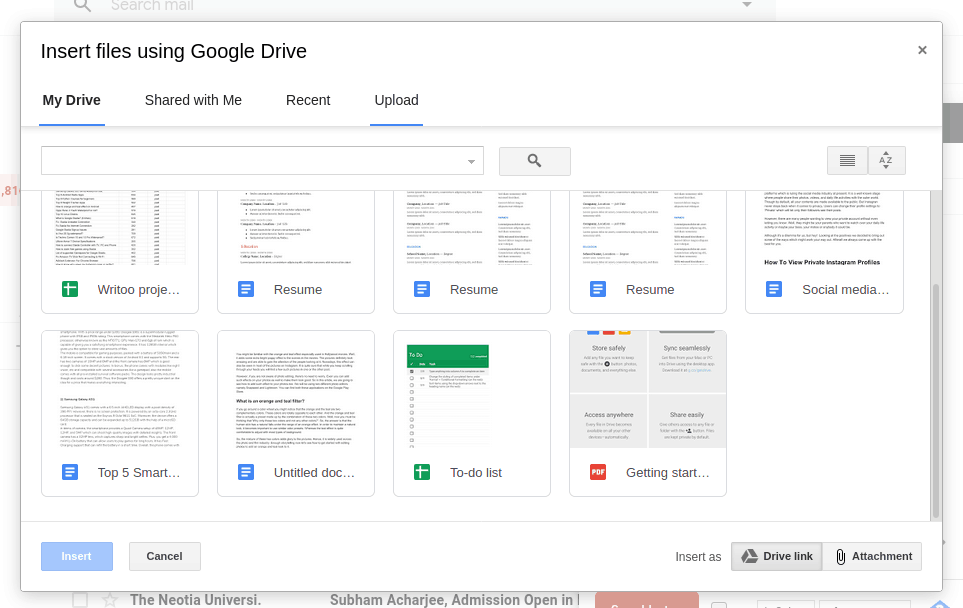
- After selecting your file, click on “ Insert as Drive link ” at the bottom-right corner.
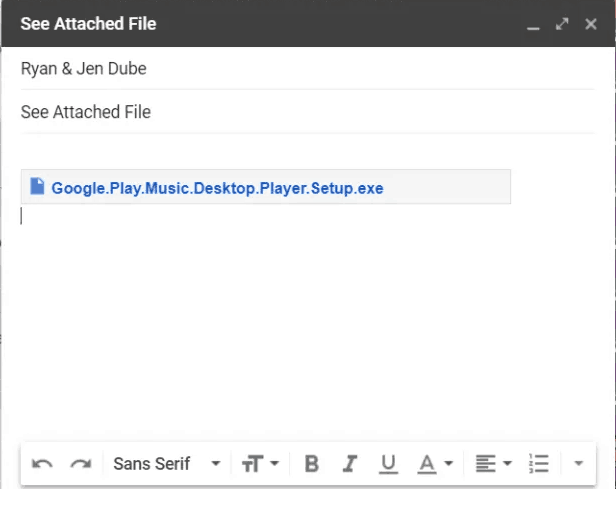
- This will generate a link from your Google Drive through which the recipient will access the file.
2. Send Through Your Cloud
Cloud Services are very well-known for providing good storage space. Thus, they can play a significant role in emailing your file. Based on whatever service you use, ensure your file fits within the given storage limit.
- If you are on OneDrive , you can select the file you want to share, right-click on it, and click the Share option.
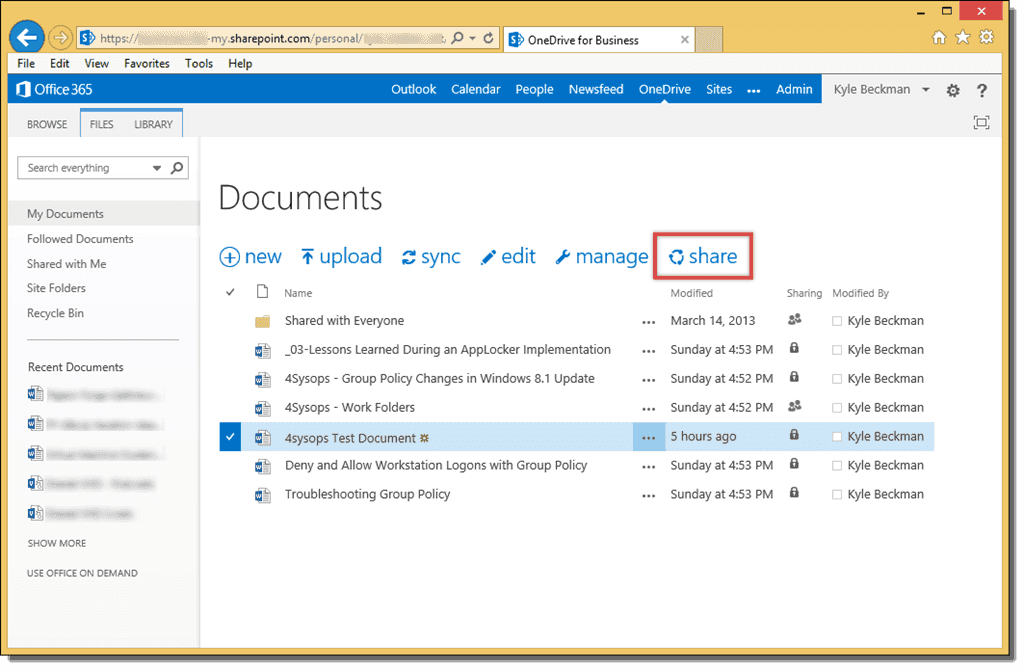
- Now, it must open a share link window to type the recipient’s email along with the text message.
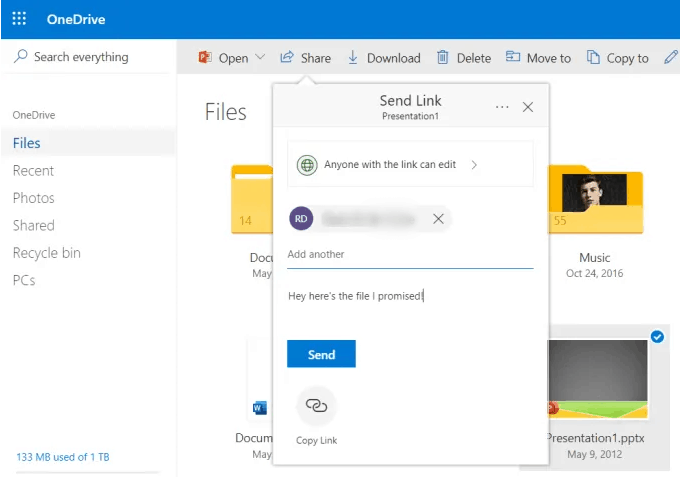
- Lastly, click on the Send button to share your attachment.
3. Send Large Files via WeTransfer
WeTransfer is a File Transfer Service that allows you to send large files within moments. I personally like WeTransfer because it is free and allows you to share files up to 2GB. Plus, it has a very easy and time-saving process.
- First and foremost, go to the WeTransfer site.
- Now select the file or folder you want to send
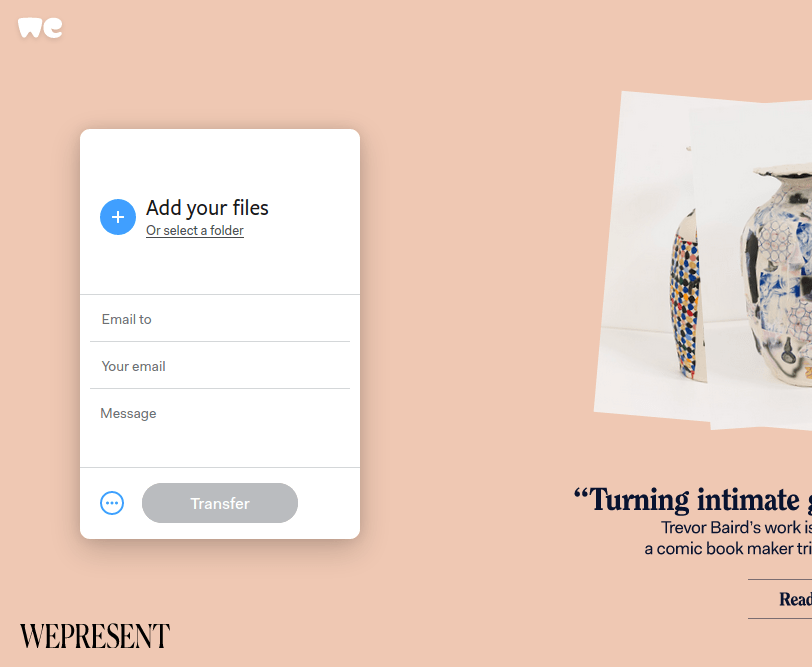
- Enter your email ID, and you can add up to 20 recipients. Type your message and click the Transfer button. All your recipients will receive an email with information about the file and how to access it.
4. Sending Files By Splitting Archives
If you are trying to send a large archive file containing many files and folders, you can always split it into smaller ones. Although this is quite time-consuming, it works fine in most cases.
Note: You need to download 7zip first – Free Download
For instance, think if you are trying to share a Zip file that exceeds the given limit of your email service. Follow the steps below to break them into smaller archives:
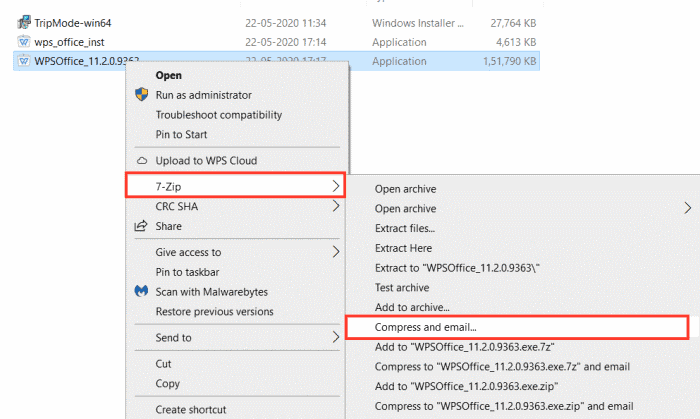
- First, locate the file which you wish to compress into several parts. Now, right-click and choose the “ compress and email ” option.
- Now, a dialogue box will appear. Enter “24M” in the split to volume options. Press Enter.
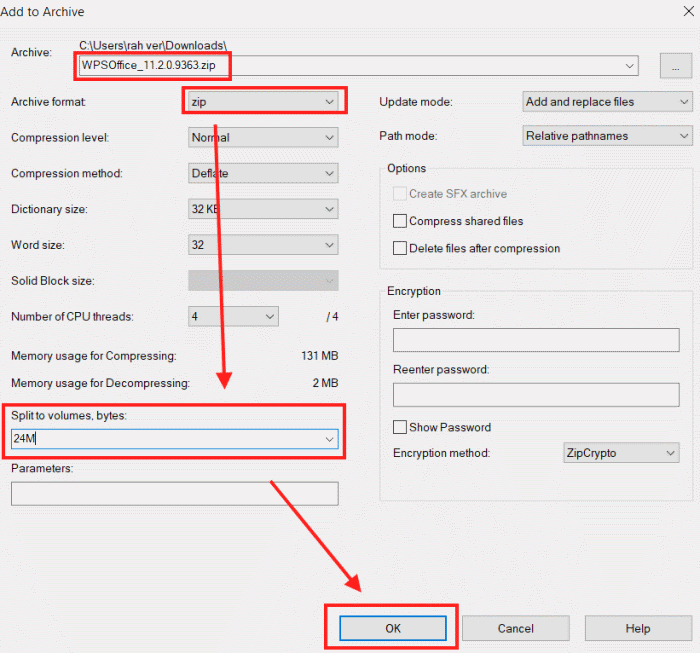
- Wait for a few minutes, and it will make shareable 25MB files, which you can share in an email attachment.
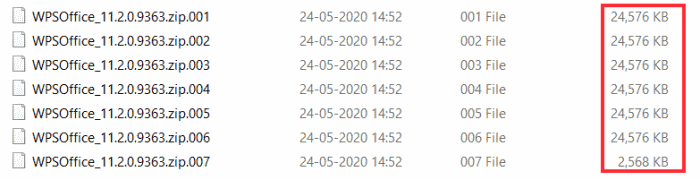
Note: To convert split file parts into one file again, select all files and choose “ extract ” in the 7Zip extraction menu. It will automatically extract and combine all files into one usable document.
5. Sending Big Files via pCloud Transfer
- Visit the pCloud Transfer website
- Next, enter the recipients as well as your email addresses.
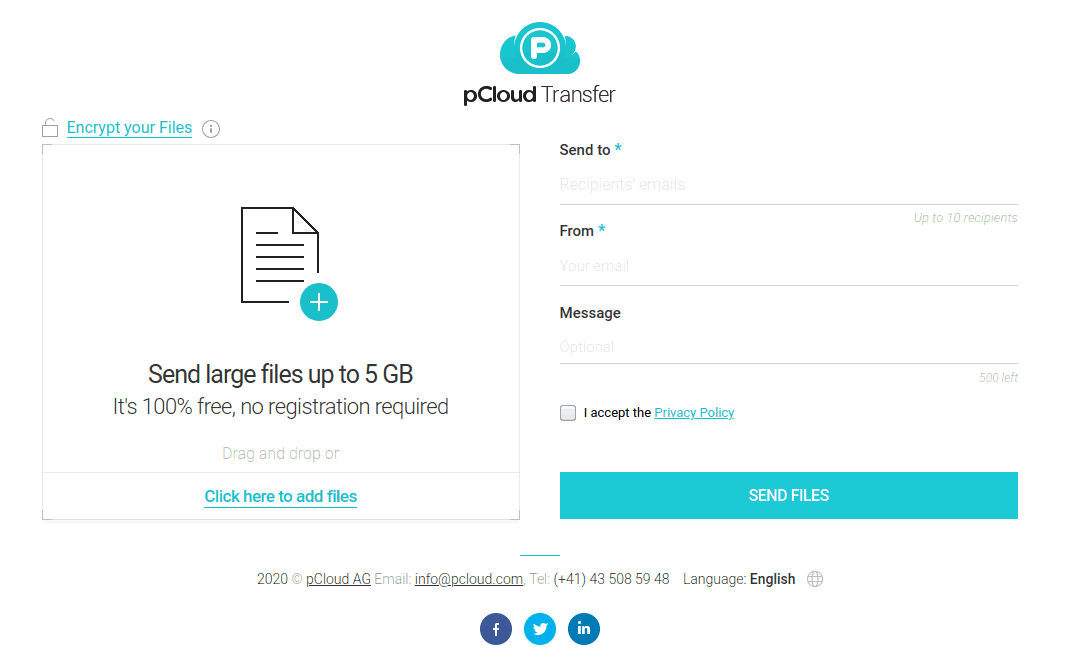
- Click the “Click here to add files” option and select your preferred file.
- pCloud also allows you to encrypt your files using a password. Click the “Encrypt your files” option in the top-left corner to protect your files .
- Finally, click the send files button to share with the recipient.
From Editor’s Desk
By now, you know there are many ways to share large files as email attachments. The method you choose always depends on which service you are using and the size of your files. So, these were some of the most convenient ways. Let us know if you like any of them.
