Nowadays, everyone wants to increase their Android phone’s RAM so that they can do various tasks quickly and efficiently. Good RAM plays a significant role, as the maximum depends on your phone’s RAM. However, few users know whether RAM can be increased, as RAM is hardware. So, we have some ways to help you increase the RAM of your Android phone after rooting.
Increasing RAM can solve many problems, like hanging off the phone, slowing down, and stopping the application. Not every person can afford a phone with high-end specifications. Many users also face different problems because of the lack of storage in RAM. The users who are frustrated by their old phones can get through this article. So, we found these ways for your Android phones to increase their RAM.
Best Ways to Increase Ram Storage On Your Android Phone
1. How To Use the SD Card as a RAM on Android
This can be considered the best method to increase the RAM in Android phones. With the help of this app, you can create virtual memory on your SD card, which will act as a ram. So fast, let’s go through the apps and increase your phone RAM.
Note- You must have PC, SD card, and SD Card Reader and the phone must be rooted to increase the phone ram through this method.
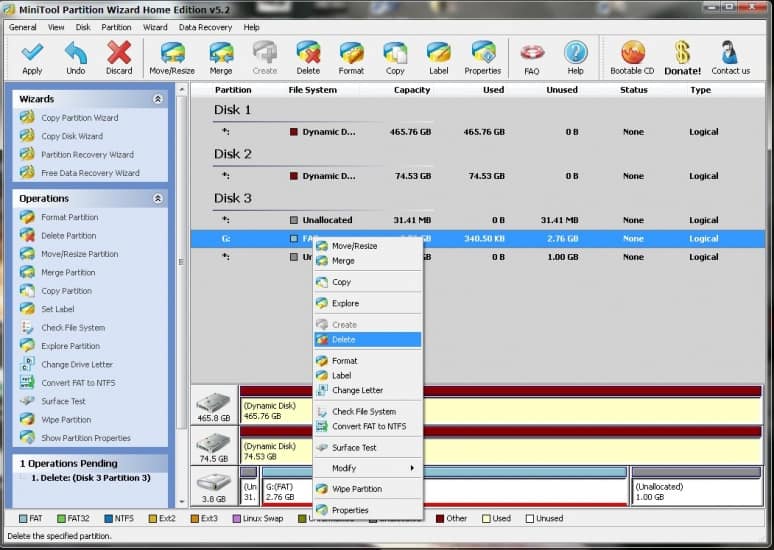
Step 1: Connect the SD card to your pc and download Mini Tool Partition on your pc. Now open the app. You will get various options; select SD card from that and then choose delete.
Note: Delete option will help to format your sd card. So prepare the backup if there is any important data.
Step 2: After formatting your SD card, you will have full space. Now select the make option. After selecting, a popup will appear with several options. Select primary in partition type and fat if the SD card is below 4GB or fat32 if it is above 4 GB.
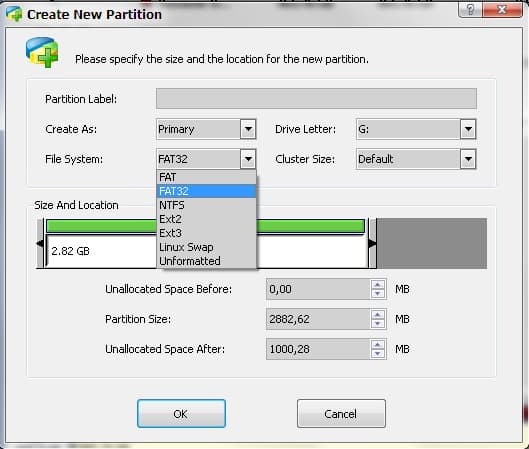
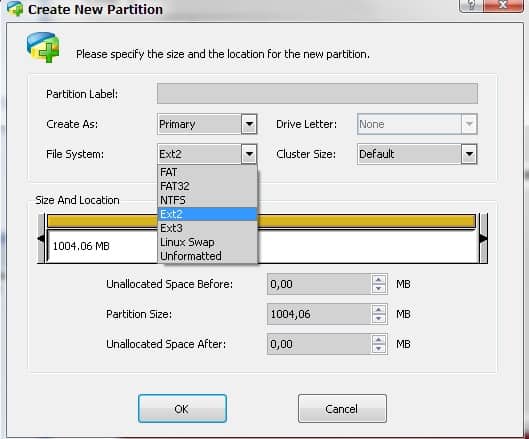
Step 3: Now, allocate the size you want your RAM to increase. I’m sure you ‘didn’t use your whole SD card space, so I left some space there. Now select ext2 as a file system; you can select ex3 or ex4 too. Just click on okay and remove the SD Card.

Step 4: Now download Link2SD on your phone. Make sure you insert that SD card into your phone.
Step 5: After installing, open it; it will ask for root permission, so make sure your phone is rooted and grant permission.
Step 6: It will ask you the file system to select the same file system chosen above, i.e., ext2.
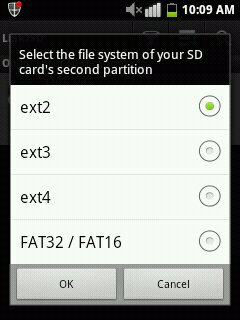

Step 7: Now, Link the apps, and then if you run an app that is linked, it will run on sd card without taking your ram storage.
2. Through Roehsoft RAM Expander
This app can help you increase the RAM of your Android phone. Increasing RAM does not indicate that you are inserting new hardware. This app will use your SD card storage, so ensure you have a good SD card.
We will increase RAM by creating virtual memory on our memory devices, which will act as RAM. Alternatively, we can create partitions, which will help increase RAM. So, let’s follow up with the methods quickly and give your device new specifications.
Note- Your phone must be rooted to increase the ram through this method as it needs root access.
Step 1: First, you must download Roehsoft RAM Expander .
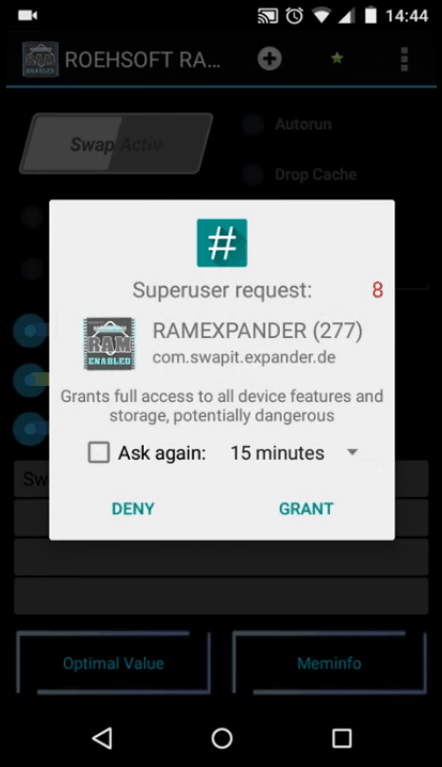
Step 2: After downloading, install the app. After installing the app as discussed above, the root is needed for this method. So the app will need root access to grant access to the app.
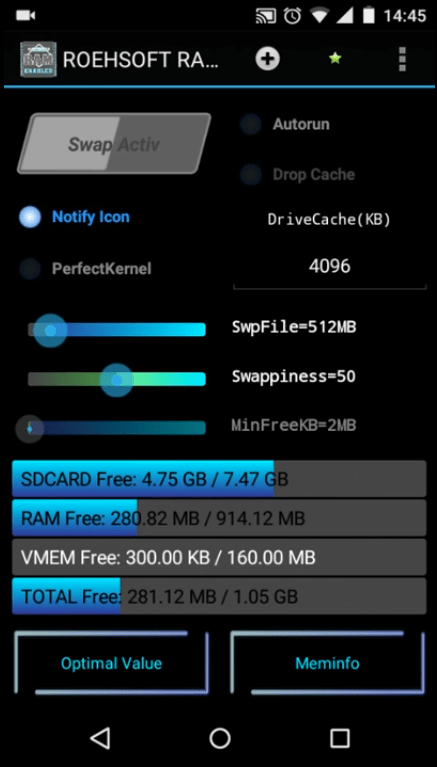
Step 3: Now, you will get the different info in the app, like total SD card storage, overall RAM size, and used and free RAM size.
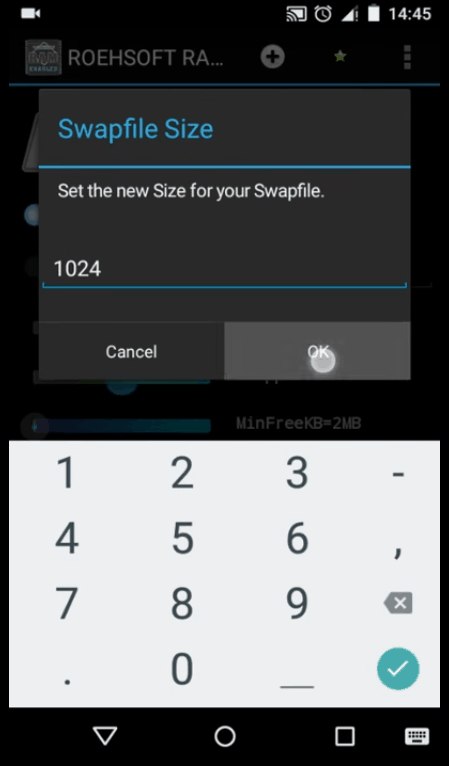
Step 4: Now, this app will create the swap, which will act as RAM storage. So, you need to select a swap size.
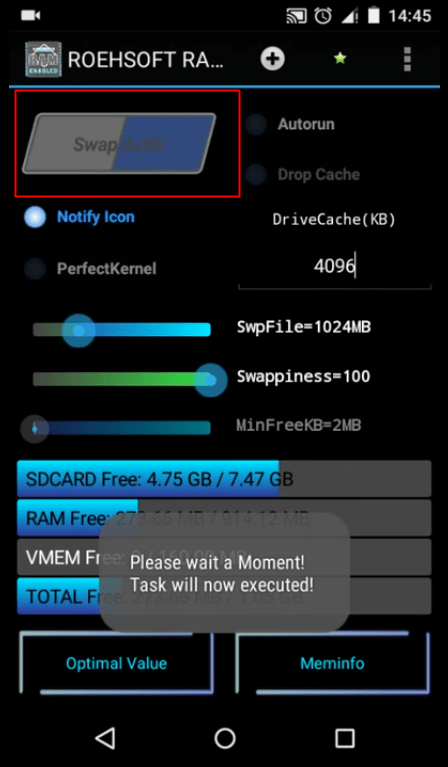
Step 5: Now, simply execute the swap and wait until the execution is done.
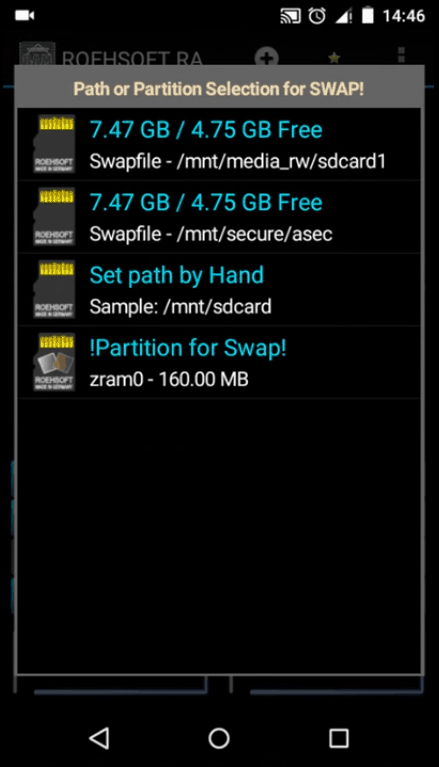
Step 6: Now, the app will ask to select the path where the swap will be stored. So choose the SD card here.
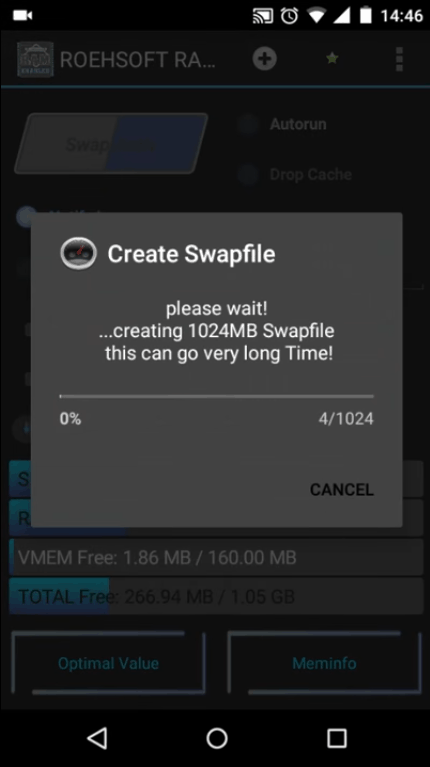
Step 7: After selecting a path, reverse and execute your swap.
Boom, you will see your increased RAM size.
