YouTube is one of the most popular social platforms, with billions of videos and more added regularly. Everyone is familiar with the YouTube comment section. It helps the viewers as well as the one who uploads the videos.
If the comment section is not loading on your PC, there might be different reasons, such as connection issues or the user has disabled it. So, before you proceed, make sure you check it properly.
If the comment section is ON but fails to load, try these troubleshooting steps to solve the issue.
Method 1: Reload the Browser
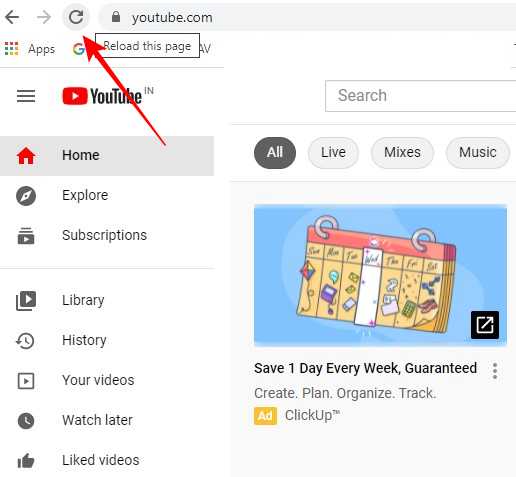
To refresh or reload the browser, press F5 or click the Refresh button. If you are having a connection problem or page loading issues, this might solve the error.
Method 2: Clear Browsing Data
Let’s see how it can be done:
- Open your browser and click on the three dots menu icon on the top right side of the screen.
- Go to the Settings menu and select Privacy and security from the left-hand side menu.
- Now, click on the Clear browsing data option.
- Here, you must select all the available checkboxes and click on Clear Data.
This will clear all your browser cache and history.
Method 3: Reset the Entire Browser
Even after clearing the browser cache, you have the same issue, so try to reset the browser settings. This can fix the problem. Let’s check how to do it:
- Go to Chrome browser, and click on the three dots menu and click on Settings .
- In the Settings window , you will see the Advanced option on the left-hand side . Click on it.
- Now, click on Reset and clean up » Restore settings to their original defaults .
- Confirm that you want to reset the settings. This will wipe off the whole browser configuration.
Method 4: Disable Browser Extensions
- Disabling browser extensions in Chrome is straightforward. Select the three dots menu icon » More Tools » Extensions .
- A list of installed extensions will appear. Select the extension that you think is causing a problem with YouTube and toggle off the button. If you think any other extension is causing the problem, disable all the extensions.
Now, return to the YouTube video and check whether the problem has been solved. If it has, then the extension is at fault.
