WhatsApp has become an essential app for almost every smartphone user. It is a social messaging app used for chatting, video chatting, and sending and receiving images, videos, and documents, among other things. WhatsApp has almost 2 billion active users around the globe and is still rising. Every second, a user installs WhatsApp after buying a new smartphone.
As you are aware, WhatsApp offers numerous features and capabilities. However, several bugs also irritate users while using WhatsApp. We receive many complaints that many people face the WhatsApp Camera Not Working issue. To address this issue, we’ve compiled some of the best troubleshooting tips available.
You don’t need to worry about it. A basic problem with WhatsApp is that sometimes the camera does not work. There may be a reason for the cache, camera permission, or any other smartphone issue and you need to restart it. We describe each fix in detail. Let’s check it out.
Also Read- How to Fix WhatsApp Not Responding Error on Android
List of Best Fixes for WhatsApp Camera Not Working
1. Restart Your Smartphone
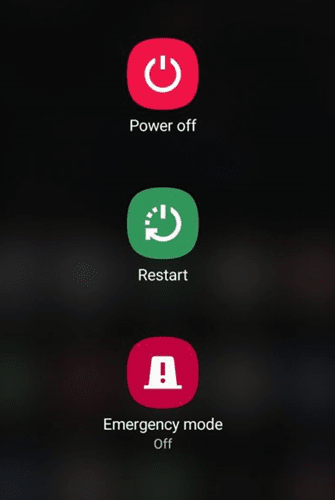
Before jumping into other methods, let’s try the basic one: restarting your smartphone. Sometimes, it can solve most of your phone’s tiny problems. It can reload all the apps, refresh your RAM, and allocate fresh memory when restarting. This results in the app functioning properly. Hence, you can get rid of the WhatsApp Camera Not Working issue.
2. Check the Smartphone’s Camera
Maybe there is no problem with your WhatsApp. It is a problem with your smartphone’s camera. So, to check it, you can use your normal camera app and try to capture a few images and record video for the camera test. If your WhatsApp camera feature works fine and there is an error, you can go through our methods below.
If there is a hardware problem, we recommend contacting your brand’s service center to fix it.
3. Reset WhatsApp / Clear WhatsApp Cache
A cache is a feature introduced to save storage space and boost the app’s performance. It can store a copy of the data you use frequently, and when you try to access it again, it reflects your action in seconds. However, most of the time, old cache files get corrupted and cause problems with Android apps.
In this, we can clear the WhatsApp cache or, say, the rest of WhatsApp Messenger, create a new cache, and get your camera problem fixed. So, let’s follow the steps below.
- Locate WhatsApp Messenger and Tap and Hold the app icon until you see an option.
- Click on App Info. On the next screen, click on Storage & Cache option.
- Now you can see two options named Clear Storage and Clear Cache. Just Tap on Clear Cache .
- Now you have successfully cleared your WhatsApp cache.
4. Reinstall WhatsApp
If the above troubleshooting does not help you solve your WhatsApp camera issue, try reinstalling WhatsApp. It can install new WhatsApp files on your Android. Sometimes, WhatsApp’s old files are corrupted and not repaired, so after reinstalling the latest WhatsApp, you can install new core files on your phone.
You can get the latest WhatsApp app from the Google Play Store. Below, you can see all the steps for reinstalling WhatsApp.
- Locate WhatsApp and Tap and Hold the app icon until you see the option.
- Now click on the Uninstall option.
- Now go to the Play Store, Search for Whatsapp, click on Install, and wait for a minute for the app to be installed.
Conclusion
This is all you need to fix WhatsApp Camera Not Opening on Android smartphones. You can try the various methods mentioned above to solve your problem. Comment below if you have any other methods or face any issues while performingthe steps.
