Microsoft Office is a set of applications designed to help with productivity and completing everyday tasks on a computer. These applications allow users to create and edit documents with text and images, work with data in spreadsheets and databases, and create presentations.
However, many users have recently complained about Microsoft Office update errors on Windows 11. If you are also troubled by this issue, keep reading this post to learn how to fix it.
The Microsoft Office update procedure automatically starts in the background when you launch Office in Windows 11 . This procedure can face errors due to an unstable internet connection. However, there are many other reasons this might occur. In this post, we have compiled a list of some troubleshooting methods that may help you fix it.
Also Read- Fix Windows 11 Update Stuck or Failed
Fix Microsoft Office Update Error on Windows 11
Go through the troubleshooting methods mentioned below to fix the Microsoft Office error on your Windows 11 device:
Fix 1: Restart your PC
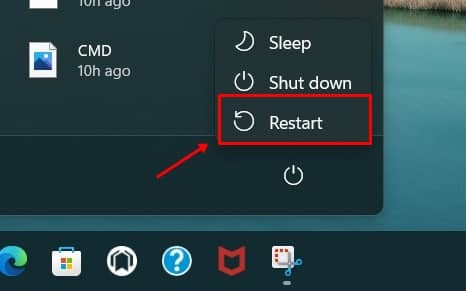
Restarting your device is the easiest way to fix this issue. It can also help eliminate minor bugs and problems automatically.
Fix 2: Run Windows Update Troubleshooter
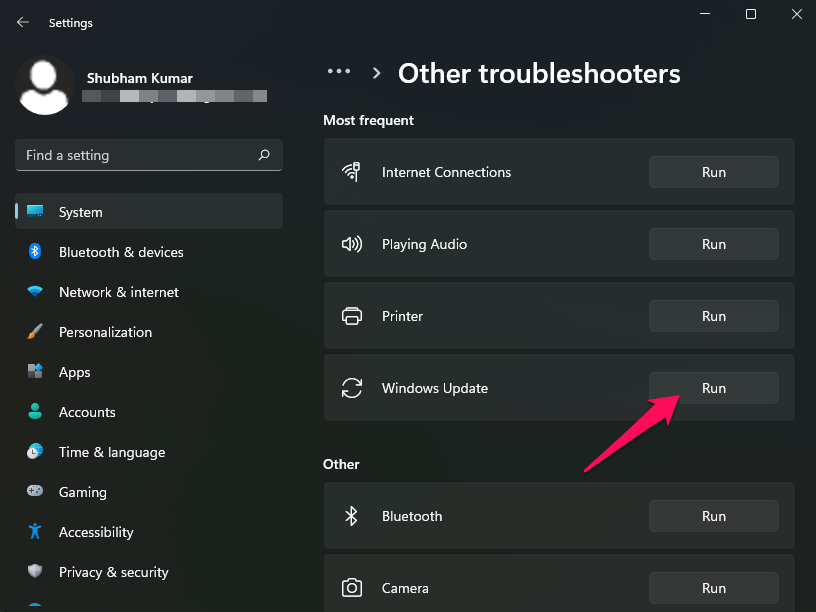
Windows Troubleshooter is a utility that comes by default on every Windows 11 device. It can automatically scan and fix any bugs and errors. Here is how you can run the Windows Update troubleshooter:
- Press Windows key + I to open Settings .
- Click on System > Troubleshoot > Other Troubleshooters .
- Scroll down and click on Run beside Windows Update .
Fix 3: Run System File Checker Scan
Corrupted files on your device are also known to cause issues like this. Run SFC or System File Checker to scan and fix these corrupt files. Here is how you can do it:
- Click on Start , search for Command Prompt and click on Run as Administrator .
- Type in the following command and hit Enter. sfc/scannow
- Restart your device and check if the issue is fixed.
Fix 4: Repair Microsoft Office
If the error still troubles you, try repairing Microsoft Office. Repairing the app won’t delete its data. Follow these steps to get your work done:
- Press Windows key + I to open Settings .
- Click on Apps > Apps & features .
- Scroll down to search for Microsoft Office , click on the three dots beside it, and select Modify .
- Click on Online Repair and follow the instructions on-screen.
Fix 5: Disable Third-Party Antivirus Software
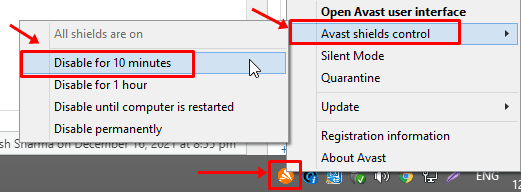
This problem might also be caused by third-party antivirus software installed on your device. Disable your antivirus program and check whether the Microsoft Office Update Error has been resolved. If deactivating the antivirus does not solve the problem, remove it temporarily and check again.
Fix 6: Check Internet Connection
When you update Microsoft Office, you need a good internet connection. If your Wi-Fi is not working, this could be the reason you are facing this issue. Perform a speed test to check if your Wi-Fi is working correctly, or restart your router. If you’re using a VPN on your iPhone, disable it.
Fix 7: Restart Microsoft Office Click-to-Run Service
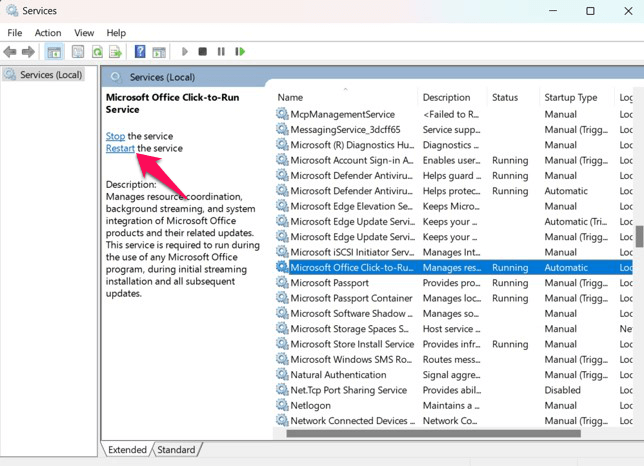
During system startup, the Microsoft Office auto-update procedure begins searching for new updates in the background. If the Office Click-to-Run procedure is not working, you may encounter problems. To fix this, restart Office Click-to-Run from the Services menu.
- Click on Start , search for Services and open it.
- Scroll down and search for Microsoft Office Click-to-Run Service .
- Select the Service and click on Restart .
Fix 8: Update Windows 11
An old version of Windows could also be responsible for this error. Check if your device is using the latest updated OS version available. Here is how you can do it:
- Click on Start > Settings .
- Select Windows Update .
- Click on Check for Update .
- Windows will now check for updates and install them.
Fix 9: Factory Reset your PC
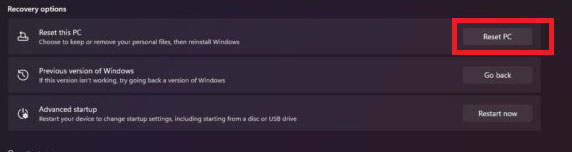
If none of the above-mentioned troubleshooting methods were able to help you, reset your Windows 11 device. Problems sometimes persist inside Windows core files that you cannot resolve manually. Here is how you can do it:
- Open Settings > Windows Update > Advanced Options > Recovery .
- Finally, click on Reset this PC and follow the instructions on the screen.
Wrapping Up
This is how you can fix the Microsoft Office update error on Windows 11. We hope that the troubleshooting methods mentioned above helped. If you still have any issues, feel free to comment below.
