As we all know, we can also send voice messages to anyone, but you are unaware of one fact. You can even convert your WhatsApp voice messages to text messages. Seems tricky? Well, no, you are wrong. You can do that with the help of apps, which we discuss below. We listed the Android and iOS, so you don’t need to worry about it.
Well, as we all know, most probably all use WhatsApp in their day to day life. WhatsApp is the way to get connected with anyone to share and enjoy various moments. You can even share your essential documents and can do a hell of a lot of things that we don’t need to discuss.
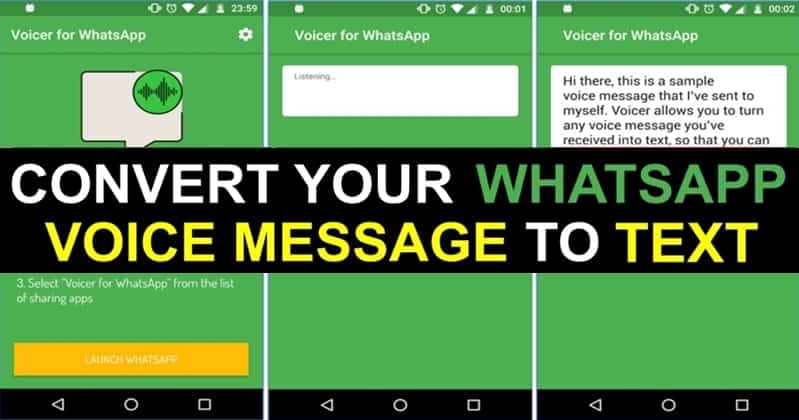
We will discuss here how, with the help of apps, you can convert voice messages to text in Android and iOS. It is not necessary to covert it, but somehow, one will not understand the language of others.
Also Read- How To Convert Voice Recording To Text On Computer
Best Ways To Convert WhatsApp Voice Messages To Text Messages
It is to solve those problems and will help you to provide language interpretation. So let’s check out the apps used for converting WhatsApp voice messages to text. We have researched and founded the best apps for Android and iOS. So let’s check it out.
1.) Convert WhatsApp Voice Messages To Text on Android
1.1) Using Transcriber for WhatsApp
Step 1 : Firstly, Download and Install Transcriber for WhatsApp.
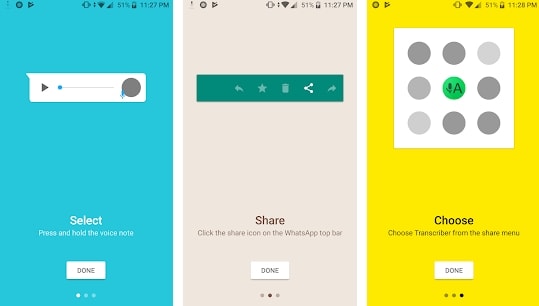
Step 2: Now, Open WhatsApp and go to the chats of that person whom voice message you want to convert into a text message.
Step 3: After opening the particular chat, search for the voice message, then long-press on it. You will see the various option but click on the share button and share to Transcriber.
Step 4: That’s it. After sharing app will automatically open and show you the text message.
1.2) Using Textr App:-
Step 1: Download and Install Textr .
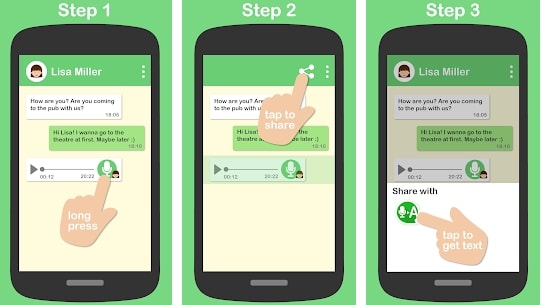
Step 2: It’s the same as Transcriber after installing open WhatsApp. Now open your chats of that person whose voice message you want to convert into text.
Step 3: Search for voice messages in the chats with a long tap on it. You will get the share button now share to textr.
Step 4: The app will automatically open and show you the generated result.
2.) Converting WhatsApp Voice Messages To Text on iOS
Step 1: Download Audio To Text on your iPhone.
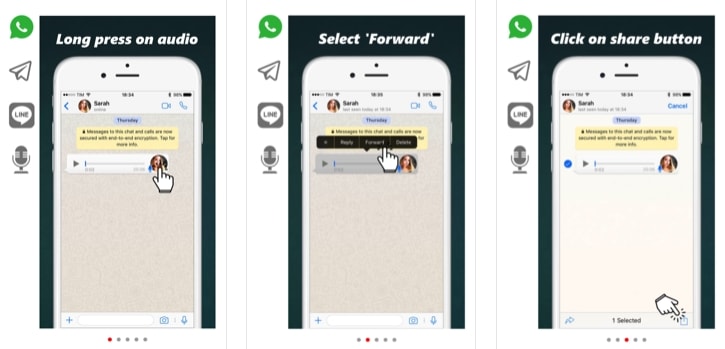
Step 2: After downloading, install it, open WhatsApp, and search for the people’s chats.
Step 3: After opening the app, search for a voice message and long tap on that. You will see there a share option, so tap on that and share to Audio To text.
Step 4: Once you will share, the app will automatically open and show you the converted text message.
So after going through it, we hope you will like our methods and ways. With the help of these ways, you can easily understand any of the voice messages.
Also Read- How to Enable Fingerprint Lock on WhatsApp in Android
We are here with the most awaited feature which you all are waiting for. As for security concerns, WhatsApp added an updated new security feature to their app. In this article, we will see how you can enable fingerprint lock in WhatsApp? . This feature will help you with safety measures and prevent you from keeping your message safe. This feature is currently working in WhatsApp beta version, but soon it will be working in WhatsApp stable versions.
The users who want to enable this feature have to do it manually from the app. Below listed steps to enable fingerprint lock in WhatsApp will help you to enable this feature quickly. Unfortunately, the feature is only for users with an android marshmallow or above in their android device.
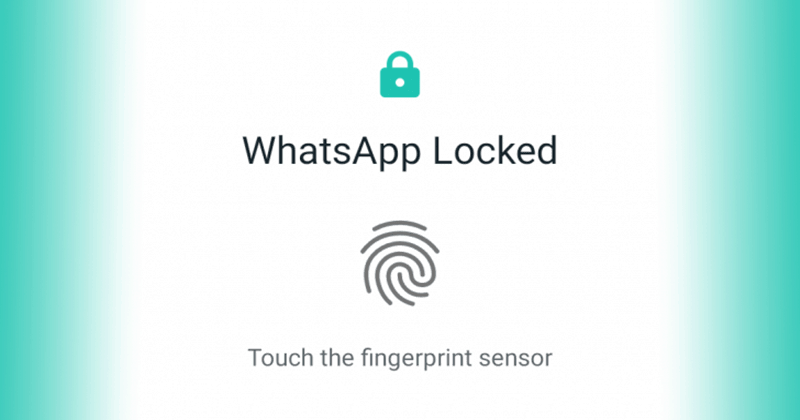
Credits – https://www.androidpolice.com
After enabling this feature, whenever you open WhatsApp , it asks for a fingerprint to unlock it. However, you can attend the WhatsApp call without any lock. You can also reply to the conversation from notification without a fingerprint lock.
List of Steps to Enable Fingerprint Lock in Whatsapp For Android
These steps are pretty simple and don’t need much time and effort. However, your device must have a fingerprint scanner to use this feature. We will suggest you disable WhatsApp notifications to ensure safety as anyone can see your unread message from the notification bar. Let’s look out the steps and ready to use this feature.
Step 1: If you are using an older version, then kindly update the version from here .
Note- If you do not update the app, you will not see this feature in this app. So it is necessary to update the app.
Step 2: Open WhatsApp, and you will see three dots on the upper right. Click on that and go to the setting option.
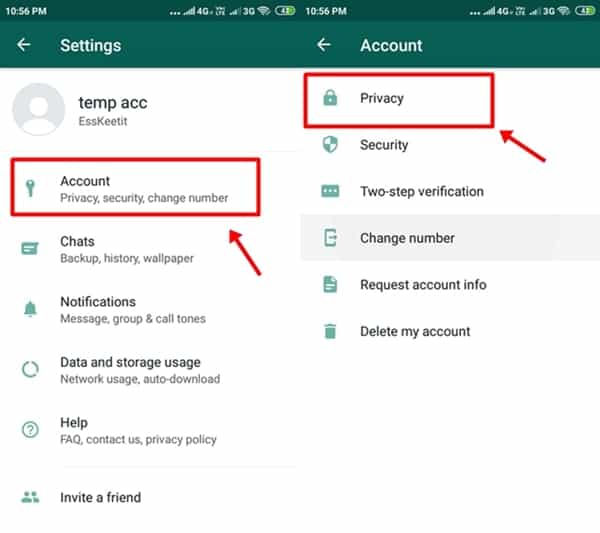
Step 3: In settings, you will see the different options, so tap on the account section. In the account section, you will see privacy .
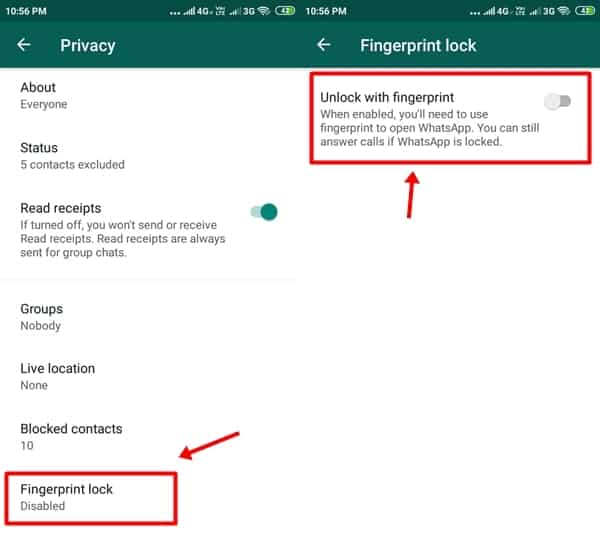
Step 4: Click on the privacy and then tap on the fingerprint lock option . After clicking on it, you will get the option to enable or disable this feature.
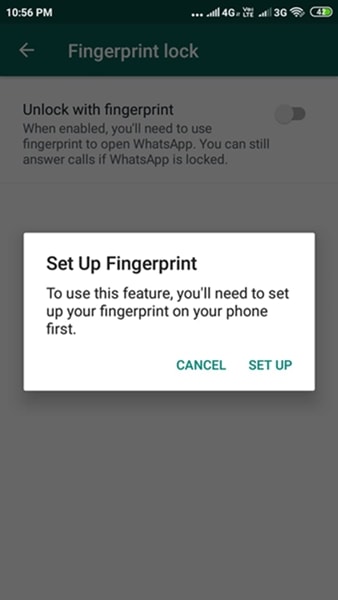
Step 5: Click on the bar to enable the feature , and the app will ask for the fingerprint. Complete fingerprint session, and you are good to go.
Note- Kindly properly follow the steps to use this feature properly. If you face any problem in enabling the feature, then try again or reinstall your WhatsApp messenger.
Conclusion
This method to enable fingerprint lock in WhatsApp is straightforward and working still. If you face any problem and have a query, you can comment down below. The disadvantage of this feature is it can be frustrating, too, as every time you open the app, you need a fingerprint.
The feature will take some weeks for the stable WhatsApp version to be introduced. The feature will only support fingerprint scan; face recognition is not supported now.
- Whatsapp To Bring Face Unlock Support For Android Users
- How to Stop People From Adding You To WhatsApp Groups?
- How to Enable Dark Mode on WhatsApp Web?
