While you try to have an immersive gaming experience, the ad keeps popping up on the screen. Mind you that not all games you find on the App Store show non-stop ads while you try to wrap your head around the game. Only while playing a few games may you encounter this issue.
These games and their developers make money through display ads. There is nothing wrong with this. The game developers worked hard to create something, and they very well deserve to make money from the product they are selling.
This, however, should not happen at the cost of disrupting the user experience of the gamer now and then. Hence, the requirement arises to block Ads in iPhone games.
Also Read- How to Enable Cookies in Safari / Microsoft Edge on iPhone
1. Turn off Mobile Data and WiFi Connection on your iPhone
- Launch the Settings app on iPhone.
- Navigate to Mobile Data and tap on it.
- Then tap on the switch beside mobile data to turn it off.
If you are connected to a WiFi after opening the Settings app,
- Navigate to WiFi and tap on it.
- Then tap the switch beside WiFi to turn it off.
2. Enable Flight Mode on iPhone to Block Ads on iPhone Games
You can easily enable fight mode by accessing the iOS Control Center. Here are the steps for you.
- If you have an iPhone or iPad with a home button, then swipe upwards from the bottom of the screen to invoke the control center.
- Otherwise, if you have an iPhone or iPad without the home button, swipe downwards from the screen’s upper-right corner to open the control center.
- In the control center, tap the airplane icon to enable the flight mode. The icon will turn orange, denoting that the connectivity with the internet has been terminated.
Keep in mind that enabling flight mode or completely disabling the mobile data or WiFi will work only if the game is entirely offline playable. If some of the game’s features or functionality require the internet to run, then disrupting the iPhone from the internet won’t let the game from running.
Also Read- How to Fix Not Getting Emails on iPhone Mail App
3. Disable Mobile Data Specifically for iPhone Game to block Ads
If you do not want to disable the mobile data entirely on your iPhone, then utilize this method. It will help you not miss out on important phone calls, WhatsApp messages, or texts while playing the game.
Specifically for the game you are playing, you can disable the mobile data by visiting the game settings on iOS.
- Go to the iOS Settings .
- Then navigate to the game you are playing on the iPhone.
- Scroll to Mobile Data and tap on the switch to disable it for that game exclusively.
4. Enable AdGuard DNS Server on iPhone
- Visit the official website of Adguard DNS .
- Navigate to Method #2 Configure Adguard DNS Manually and tap on it.
- You will see the expanded sub-menu list of several popular operating systems.
- Tap on iOS as we have to grab the Adguard DNS to block ads on iPhone games.
- Select Default Server and tap on Download Configuration Profile .
- The profile will be downloaded to the Settings app of the iPhone.
- Open the Settings app and tap on Profile Downloaded .
- Tap on Install to install the Adguard DNS profile.
5. Activate Adguard DNS on Your iPhone
Here are a few steps to check and enable Adguard DNS on the iPhone to block ads in games.
- Open the Settings app and tap on General .
- Under that, scroll to VPN and Device Management .
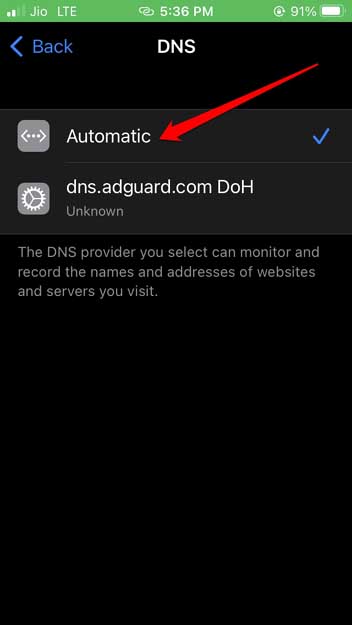
- Navigate to DNS and tap on it.
- Check that dns.adguard.com DoH has been selected.
If you want to disable the Adguard DNS, follow the steps above, and in the fourth step, change the permission to Automatic . The ads will then start appearing again on the iPhone games.