Adaptive brightness focuses on preventing the all-too-common circumstance in which an Android user must manually change the display brightness using an on-screen slider. This causes the display to appear washed out or dim as conditions change.
When this option is enabled, Android automatically chooses a screen brightness appropriate for the user’s current ambient light conditions. However, many users have started reporting that after the recent patch update of Android 12 , the adaptive brightness is not working on their Android devices.
Well, it seems like the last update may contain some bugs; therefore, if you have yet to install that update on your Android, wait for some time until your device manufacturer rolls out a new update. But in case you have updated and now the adaptive brightness is not working, follow up on this guide.
Also Read- FIX – Mobile Data Not Working on Android
Methods To Fix Adaptive Brightness Not Working on Android
There aren’t many fixes for this error, as it’s a glitch caused by a software issue. But, still, we have tried our best to fix this for you guys. So, let’s have a look at the fixes:
Fix 1: Turn On / Off Adaptive Brightness
It may be possible that there is no issue with your Adaptive brightness, and the error just randomly occurs. So, you may try this to check that; you can follow these easy steps:
- Firstly, open the Settings app and hover to the Display Settings .
- Then, click on the Adaptive Brightness and toggle the button to the Off position. Then, wait for 1 minute and turn on the feature. After that, check if it is now working or not.
Fix 2: Reset This Option To Default
If the above method doesn’t help you, then there is a possibility that the adaptive brightness settings may be corrupted or not correctly set up as per your needs; therefore, resetting this option to its default will be the right choice. So, let’s check out the steps:
- Initially, open the Settings app and navigate to the Apps & Notification .
- After that, select the See All Apps option.
- Then, locate the Device Health Services app and click on it. Now, tap on the Storage and Cache > Clear Storage .
- That’s it. Now, finally, tap on the Reset Adaptive brightness button .
Fix 3: Reboot Your Device
There are possibility chances the issue may occur due to some temporary bug files that are stored on your device RAM, due to which it difficult to handle the load due to which you are getting this type of unexpected issues.
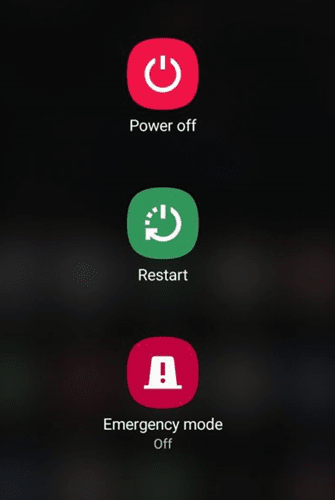
Therefore, you can reboot your device and check if it helps fix the error of the adaptive brightness not working.
Fix 4: Check For System Update
Did you check if your device is running on the latest version of the available system software? Your device may have any pending system OS updates due to this issue.
Moreover, the chances are that your device manufacturer may have rolled out some minor updates to fix this issue. So, it is highly recommended that you keep checking for updates regularly. You can follow this path:
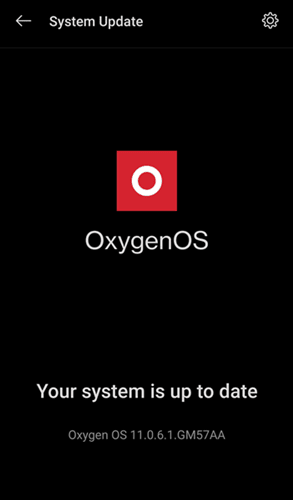
Settings app > System > System Update > Check For Updates .
Fix 5: Reset App Preference
Many users reported that resetting the app preference also helped them fix the Adaptive Brightness error on their Android device. You can also try this out. Therefore, to reset the app preference, you can follow these steps:
- To begin, launch the Settings app. After that, go to the System settings.
- Now, expand the Advanced tab and click on the Reset Options .
- After that, tap on the Reset app preferences and hit the Reset apps button.
Fix 6: Use The Safe Mode
Sadly, if nothing helps you, you are still bothered due to this painstaking error. Then, you should check this option using Safe Mode. So, let’s see what you need to do:
- Firstly, press and hold your phone’s power button until the boot menu pops up.
- After that, tap on the Reset button until a new window opens asking you to enter Safe Mode . Then, tap on the OK button to enter Safe Mode.
So, that’s all on how to fix the Adaptive brightness not working issue on your Android device. We hope that this troubleshooting article has helped you. Meanwhile, if you need more info regarding the topic, comment below.
