SD cards and Pendrives are the smallest storage devices ever made for storing and transferring files from one device to another. However, many Android users recently reported that they could not format their SD cards.
Well, it’s very annoying, and it happens very often, especially for all of you who deal with removable drives, flash drives, cameras, and SD cards.
However, when dealing with a faulty SD card or any storage device, the first solution that comes to our mind is to format it. But guess what? It doesn’t work, and it drives you crazy.
Well, if we consider the primary reason behind this problem, you may have read-only authentication. Therefore, to fix this, you have to change to write permission. So, how will you do this? Let’s find out.
List of Best Ways to Fix Android is Unable to Format SD Card Problem
There are many methods that you can use to fix this error. But here we will discuss the easiest and the best ones. So, follow them carefully, as one wrong step results in losing valuable data.
#1. Reboot Your Android Smartphone
This is the first method to fix your SD card. Sometimes, due to random glitches or bugs, your phone’s system fails to read your SD card and make changes to it. So, if you are unable to format the SD card on your Android device, rebooting your system will fix the problem.
#2. Check Memory Card Using Computer
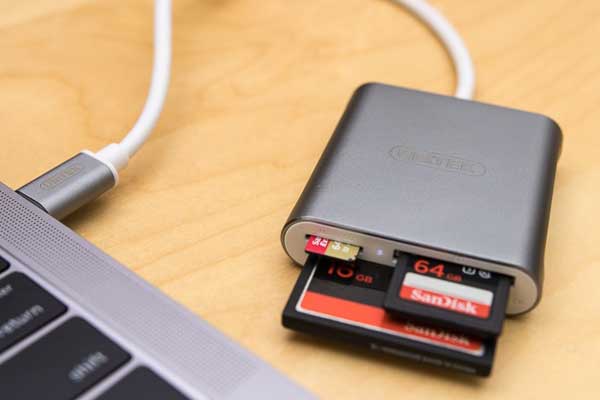
We recommend using a computer if the issue doesn’t resolve even after rebooting your Android smartphone. For example, you can use a Memory card reader to read SD cards on PCs, laptops, and cameras. Then, connect it to your PC and check if your PC reads it correctly.
However, if it does not show on your PC, it is a sign that your SD card might have been damaged, and it will no longer work.
#3. Allow to Write
It is another reason behind this error, as we have already stated in this guide. Also, if your SD card writing protection is enabled, you cannot transfer or receive data from other devices. So, to remove this, you need to follow the steps mentioned below:
- Firstly, connect your SD card to your Windows PC properly, either with your phone or a card reader.
- Now, run the command prompt and use the command Diskpart . Then, hit the enter key.
- After that, use the command list disk and hit the enter key.
- Now, the list of storage devices connected to your Windows PC appears. You can select your disk by using the command select disk 0 (use your disk placement number, such as 0 here).
- That’s it. Now, simply type in attributes disk clear readonly and hit the enter key.
Once you have successfully followed all the steps, type exit and close the command prompt. You can now see if you can format your SD card .
#4. Use PC to Format
If your PC reads your SD card, the problem might be with your smartphone. So, instead of formatting it on your smartphone, you can use your PC. Therefore, if you don’t know about formatting an SD card using a PC, follow the steps given below:
- Firstly, connect your SD card to your Windows PC properly, either with your phone or a card reader.
- Now, go to My Computer and check if it is showing there or not. If so, then right-click on it and hit the Format option.
- After that, a format window will appear. You can select the File System to FAT32.
- Then, under the format options section, check the Quick Format box and hit the OK button.
So, that’s all about fixing if you are unable to format the SD Card in your Android smartphone. We hope you understand the points we discussed here. However, you can use our comment section to ask us a question regarding this topic (if any).
