Note-taking apps can help you improve your habits, increase your study time, remember important information, or create a simple to-do list.
Samsung Notes is one of the best note-taking apps . It allows you to take notes with images, footnotes, voice recordings, and music. Sharing its content is super easy, and you can also integrate with Microsoft OneNote and Samsung Cloud.
Samsung Notes is a hugely popular Android app with over 1 billion downloads. It comes with the phone OS on Samsung phones. However, some users experience problems with it crashing and not working. In this post, we will show you how to fix this .
How to Fix Samsung Notes Not Working on Galaxy Phones
You must be feeling frustrated when you encounter this specific problem. Luckily, we have found some methods to fix Samsung Notes on Samsung phones crashing. So, without further ado, let’s follow all the methods carefully.
1. Restart Your Samsung Phone
Restarting the phone is one of the best ways to fix any issue. Most commonly, every inconvenience happens with RAM. If your app needs more RAM to perform at its highest potential, you have to free up memory for a smooth experience.
Even after closing some apps, they still work in the background and consume power and RAM. Later, it becomes a bigger problem, like a small battery life device, hangs, lags, and conflicts between programs.
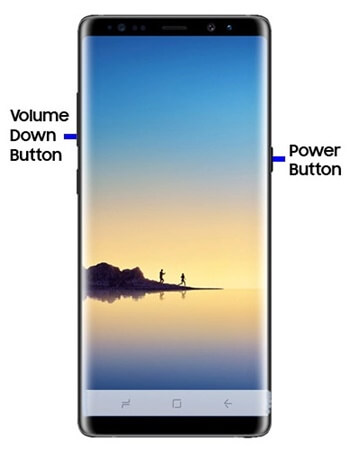
However, if Samsung Notes is not getting enough resources, it stops working or crashes in between using the app. So, restarting the phone is the first and foremost process for you. Moreover, restarting clears bugs and glitches as well.
2. Clear Caches of the Samsung Notes App
Typically, caches are useful for apps to perform better and store temporary data. But corrupt caches are bad, as they can stop an app from working. Therefore, cleaning caches is the only way to make everything perfect like before.
- Open the Settings app on your Samsung phone.
- Next, head over to the Application manager .
- Now select the Samsung Notes app, and choose the Storage options .
- Now simply click on Clear cache . You can also click on Clear data; it helps, but it removes all data.
3. Allow App Permission
Allocating RAM and memory isn’t enough to let an app perform sufficiently. If you aren’t permitting all necessary features, such issues are about to occur. Make sure you have allowed all necessary app permissions.
- Press and hold on to the Samsung Notes app , and now click on Info .
- Next, click on Permission .
- Now permit all required features to start working properly.
4. Re-sign In Samsung Account
Well, this is another useful method to make Samsung Notes work again. Samsung account processing failure issues are one of the common causes of this problem. Here’s what you need to follow.
- Open the Settings app > Accounts and backup > Manage accounts .
- Next, click on the Samsung account, and then click on Remove account on the next page.
- Therefore, confirm the Remove account and sign out .
- Go back to Manage accounts again, and click on add account .
- Now select Samsung account, submit login details, and you’re ready.
5. Reinstall App
Reinstalling the app is another considerable method that you should follow if all the shared methods have not worked for you so far.
Firstly, uninstall the app from the device. It will take away all the problems. Then restart the phone for once.
Now, download and install the Samsung Note app from the Play Store or Galaxy App Store.
6. Disable Samsung Cloud from Sync
Problematic sync could be a probable reason for this inconvenience. Thus, disabling it is the best solution.
- Open Settings > Account & Backup > Samsung Cloud .
- Then select Synced apps .
- Now turn off the toggle of the Samsung Note app .
7. Fix the Date and Time
It’s a good idea to keep the perfect date and time. If it is not, then dealing with such issues becomes more frequent. Here’s what you need to follow.
- Open Settings app > General management > Date and time .
- Next turn on the toggle of the Automatic date and time .
8. Update Samsung App
Generally, using outdated apps is not recommended. Always try to use the latest app version to get the best compatibility with the phone OS. Moreover, it has also introduced new features and functions.
You can update the app on either the Google Play Store or the Samsung Galaxy Store.
Update Samsung Notes from Play Store
- Open Play Store, search for Samsung Notes and click on it.
- Now simply click on the Update button, and this will update your phone.
Update Samsung Notes from Galaxy Store
- Open the Samsung Galaxy Store, click on the three dots at the top right corner, and select My page .
- Now click on Update .
- Find the Samsung Notes app, and click on the update .
