Have you ever faced where the app stops responding? Then don’t worry; we are here with the best methods to force quit Mac applications . For example, suppose we started some app for work, and immediately it starts crashing; in that situation, the only solution is to force close the app.
Anyone can face such errors, as these are minor issues that no one can control. Many of you already know about the shortcut keys you can force quit the apps, but what if they don’t work? You have to know the alternatives to use it at the right time.
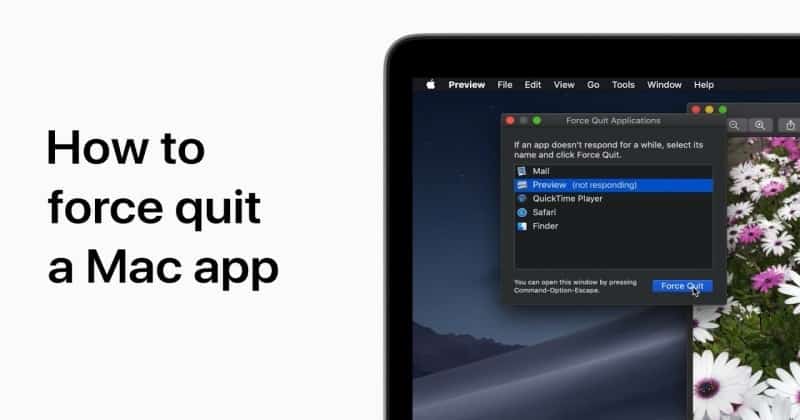
These methods to force stop applications will work amazingly if you use them properly without any mistakes or errors. Force quitting the application will solve problems like the app stops working, starts crashing, or hangs.
Also Read- Best Firewall for Mac
List of Best Ways To Force Quit Mac Applications
These problems were caused by of failure in system memory, which resulted in this. In addition, errors like app crashing, hand, and stop working can also slow down your pc and performance simultaneously.
It is necessary to force quit it to recover from all these listed problems. So let’s check out the methods and resolve the error quickly.
1.) Force Quit From The Apple Menu
Suppose you open the app, and it shows a black screen, but if the request is running, wait a minute, then force quit the app. It is the simplest way to close the app.
Step 1: Go to the upper Apple menu on the left side and click there.
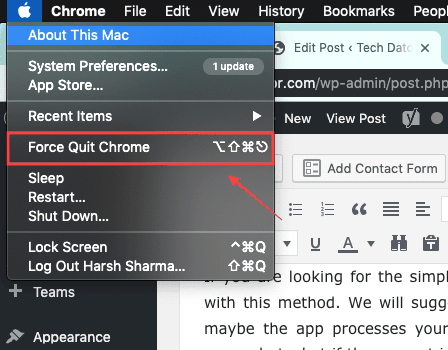
Step 2: Once you open the menu, you will see the force quit option, select it, and close the app.
2.) Force Quit Through Dock Panel
It is the best way to close the Mac application as well as quite simple too. Whenever you right-click on any application on a Mac, there is an option to force quit, which may not work when the app hangs. For example, suppose you open the app, and your pc hangs. Now you will not get the force quit option by right click.
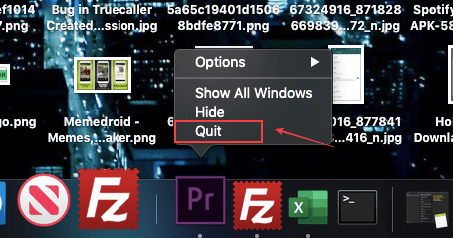
Then what you have to do is hold the option key on the keyboard and then click right on the application. When you right-click on the option, you will get the force quit option instantly. Click on it, and you are done.
You can also use this method when your app starts hanging in the middle session. But your all unsaved work will clear if you use this method in the middle session to close the app. So make sure to save your work timely manner.
3.) Through Activity Monitor
The activity monitor is similar to the task manager, which works on the Windows operating system. Both are precisely the same, but the difference is their names. As the task manager gives information on everything, such as running apps and various information, the activity monitor also does the same.
You can get information such as Memory, disk, and network through the Activity Monitor. Along with closing down the app, you can also close any process, such as a software update, with an activity monitor.
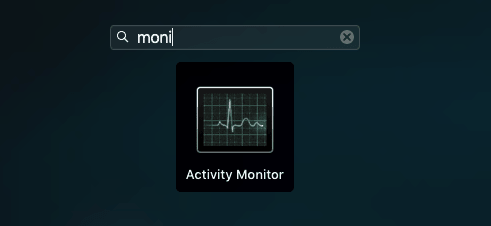
Step 1: Go to the launchpad and open the Activity Monitor from there.
Step 2: Once the Activity Monitor opens, go to the CPU tab to get various processes and apps.
Step 3: Search the app you want to close and click on the force quit option.
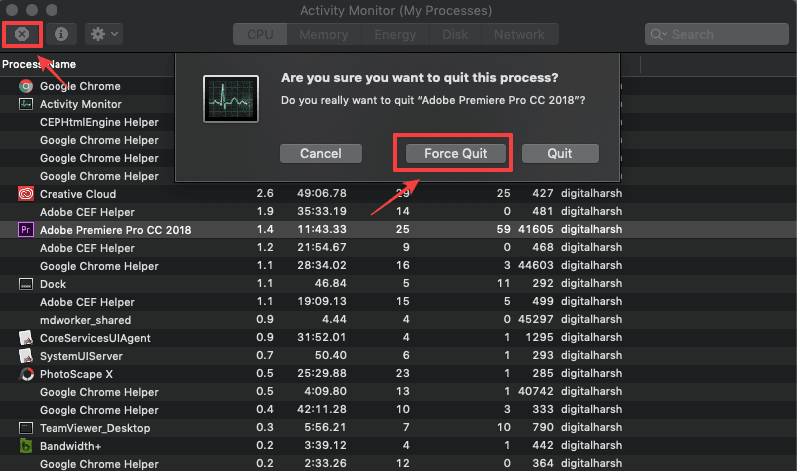
Step 4: Once you click on the force quit option, it will ask you again to quit, so proceed with that, and you are done.
4.) Through Memory Cleaner
If the above-listed methods do not work for you, you can use them to close the app. You have to download the Memory Cleaner app, which will help you to close the application.
You can also clean the Memory and cache of any app and force quit, which will enhance the PC speed. Clearing unnecessary memory and cache will result in increasing your PC performance.
Step 1: Download Memory Cleaner from here and install it on your System.
Step 2: Once you have done the installation process, open the app, and see all running apps there.
Step 3: Select the app that you want to close and click on the force quit option.
5.) Using Kill Command
You can also close any app through the command line; it is a complicated method. To close the app, you should know the process ID; then, only you can close the app. Whenever we start any process, such as opening an app, the Operating System assigns the process to identifier. You can easily find the process ID through the Activity Monitor.
Step 1: Open the command line terminal.
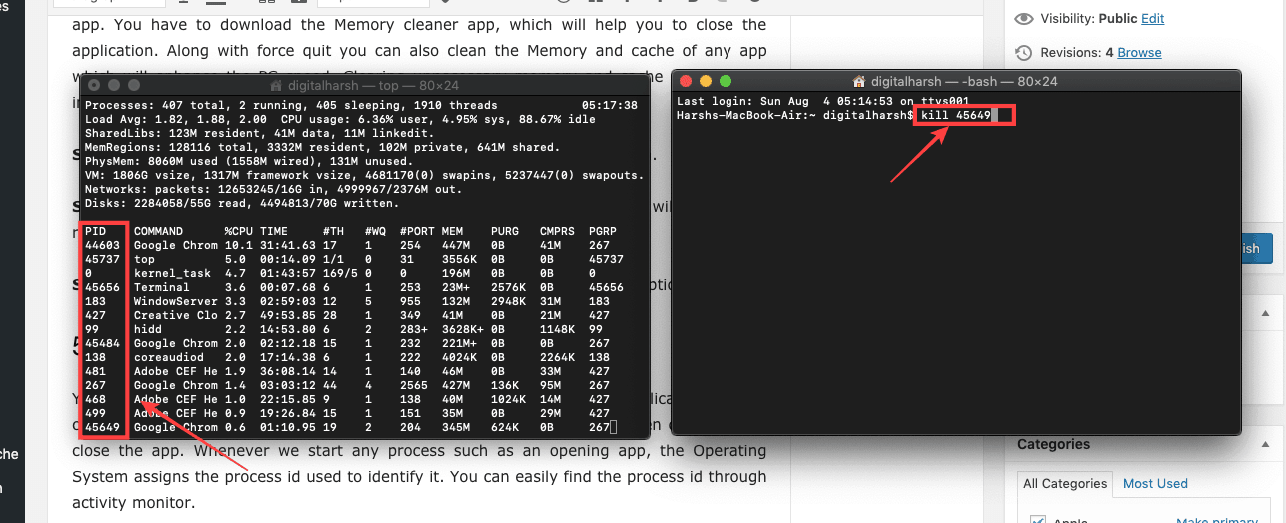
Step 2: Once you open the terminal, type top -o CPU . After typing, you will see all the processes running on your pc with their information.
Step 3: Now type kill [pid] . Suppose we want to stop TeamViewer, which process id is 7657, so we will type kill [7657] . After typing this command, the operating system will end the following process.
