The Windows operating system has many useful Networking commands for getting system information and dealing with networking issues. All these commands are powerful and can be easily accessed via Command Prompt (CMD).
You must be the computer’s admin if you want to use these commands on your system. Only then will these commands work properly. There are different types of networking commands, but here we have discussed a few of them, which might help you.
How to Use Command Prompt in Windows 10?
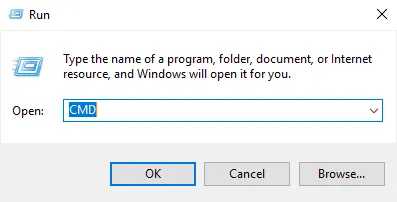
You can right-click on the Start button and select Run to open the window. Type in cmd and hit Enter to open the Command Prompt window. Alternatively, you can press Windows key + R , type cmd , hit enter, and launch the Command Prompt.
Also Read- 100+ Windows 10 Run Commands You Should Know
List of Best Useful Windows Networking Commands
1. PING
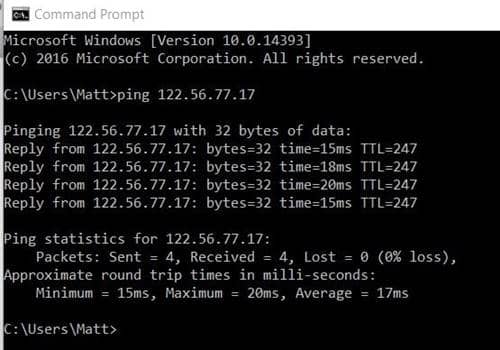
Most of us are familiar with the Ping command, which is widely used for testing network connection issues. First, open a command prompt and enter the Ping command, then enter the host’s name or IP address. The size of the packets will be sent on the first line, and the reply from each packet will be shown on the next four lines.
Command – ping
2. GETMAC
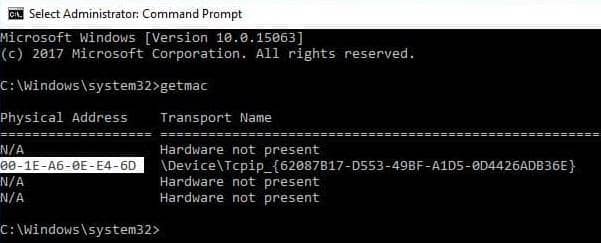
The getmac command displays your device’s Media Access Control (MAC) addresses. When you type getmac and press enter, you will see a physical address and a Transport names list.
This command is useful in two ways. The first is whenever you enter the MAC address into the network analyzer. The other is when you want to know what protocols are currently used on each network adapter.
Command – getmac
3. NSLookup
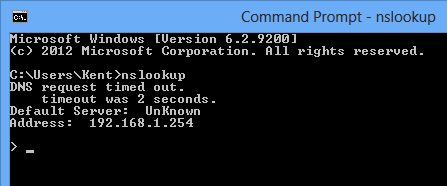
NSLookup displays information used for diagnosing Domain Name System (DNS) infrastructure. When you type the nslookup command and hit enter, you will see the name and IP address of your device’s DNS server. You can also find the domain name by typing an IP Address.
Command – nslookup
4. NbtStat
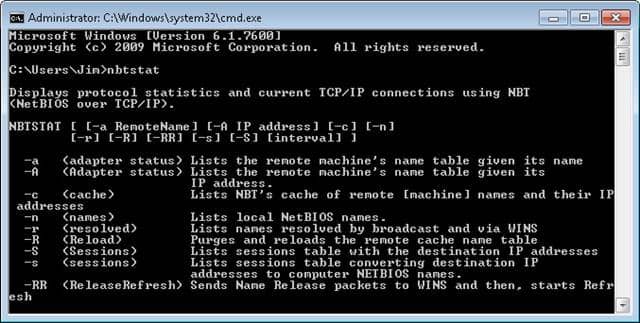
It is a diagnostic tool for NetBIOS over TCP/IP. It is mainly used to troubleshoot issues with NetBIOS name resolution. Windows uses different methods to map NetBIOS names to IP addresses like LMHost lookup.
Command – nbstat
5. IpConfig
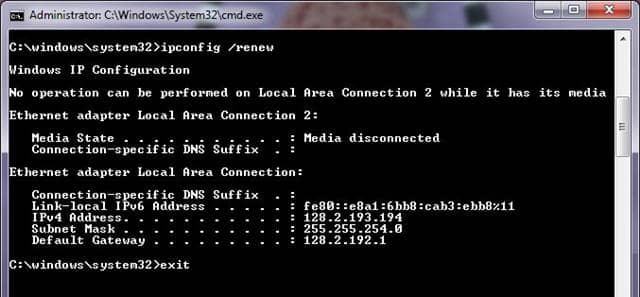
Ipconfig is a handy command as it provides a lot of information about your local machine. You can also combine it with other switches to execute a few tasks. These are a few of the switches that provide more information:
Command – ipconfig
- ipconfig /all – It displays more information about your system’s network setup.
- ipconfig /release – It releases the IP address you are using.
- ipconfig /renew – Renews the IP address of your device.
- ipconfig /? – Shows help for Ipconfig and its switches.
- ipconfig/flushdns – flush the DNS cache.
Also Read- How to Run Windows Programs at Higher Priority
6. Tracert
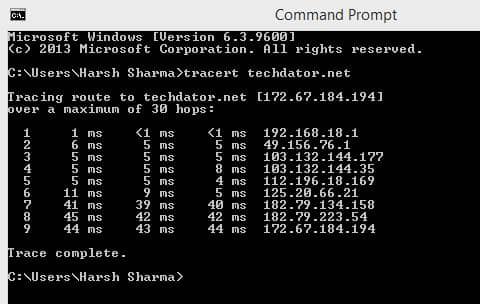
Tracert stands for Trace Route, which is used to trace the packet’s route before it reaches its destination, and it shows the information on each “hop” with the route. A hop is several routers that pass through the packet route.
Once you run the tracert command, you will see a summary of each hop, including the latency between your device and the hop and the hop’s IP address. The tracert command can be used to check the exact cause of the problem. There might be an issue with the website, or it could be a fault on your side.
Command – tracert
7. NetStat
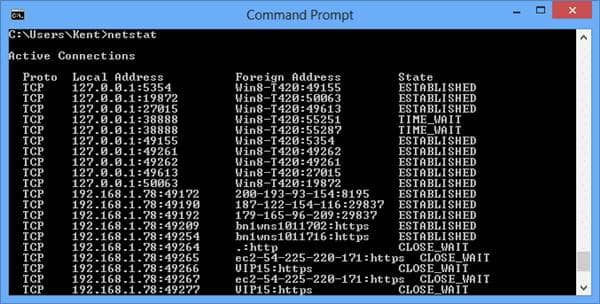
It is a tool for viewing network statistics and diagnostics. If you have any problem with your network, it may help you in the correct direction of the cause. The Netstat command presents you with a useful network summary for your device.
Run this command and see a list of all active connections. It will define the protocol, local and foreign address, and connection state.
Command – netstat
8. NETSH
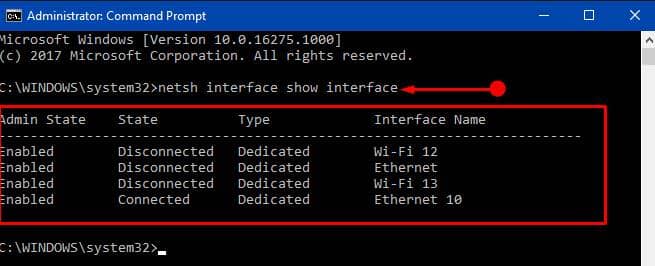
NETSH is a Network Shell command that allows you to view and configure all types of network adapters on your device. It provides more details than other commands. When you run the netsh command on its own, the cmd will be shifted to network shell mode. In this mode, there are a few different “Contexts,” like DHCP-related commands.
Command – netsh
Run netsh /? and see all the available netsh contexts.
netsh context name /? See all the commands available in the context.
netsh context name show /? In a few of the commands, subcommands are available.
9. PathPing
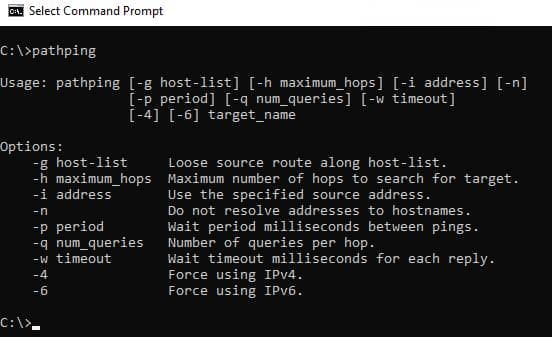
The PathPing tool is a combination of the Ping and Tracert commands. In the command prompt, enter the pathping command and then a hostname, and it will initiate like a regular old tracert command. Once the process is finished, you will get more information than Ping or Tracert, like statistics, packet loss statistics, and latency reports.
Command – pathping
10. SystemInfo
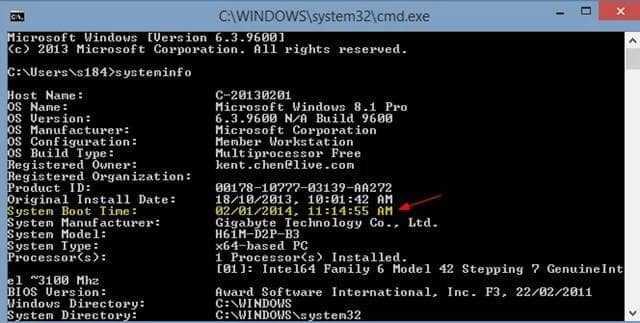
This command helps you to know any detail about the device you are using, like the processor, Windows version, or anything. Once you enter the systeminfo command, it will display all the important details of the device, which can be understood easily.
Command – systeminfo
Also Read- How to Format SD Card Using CMD Windows 10
